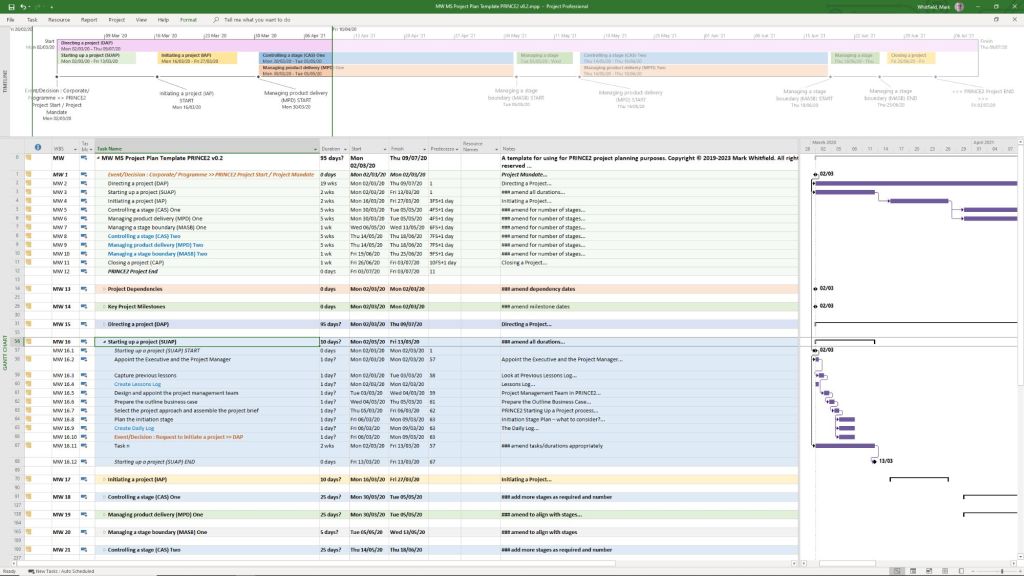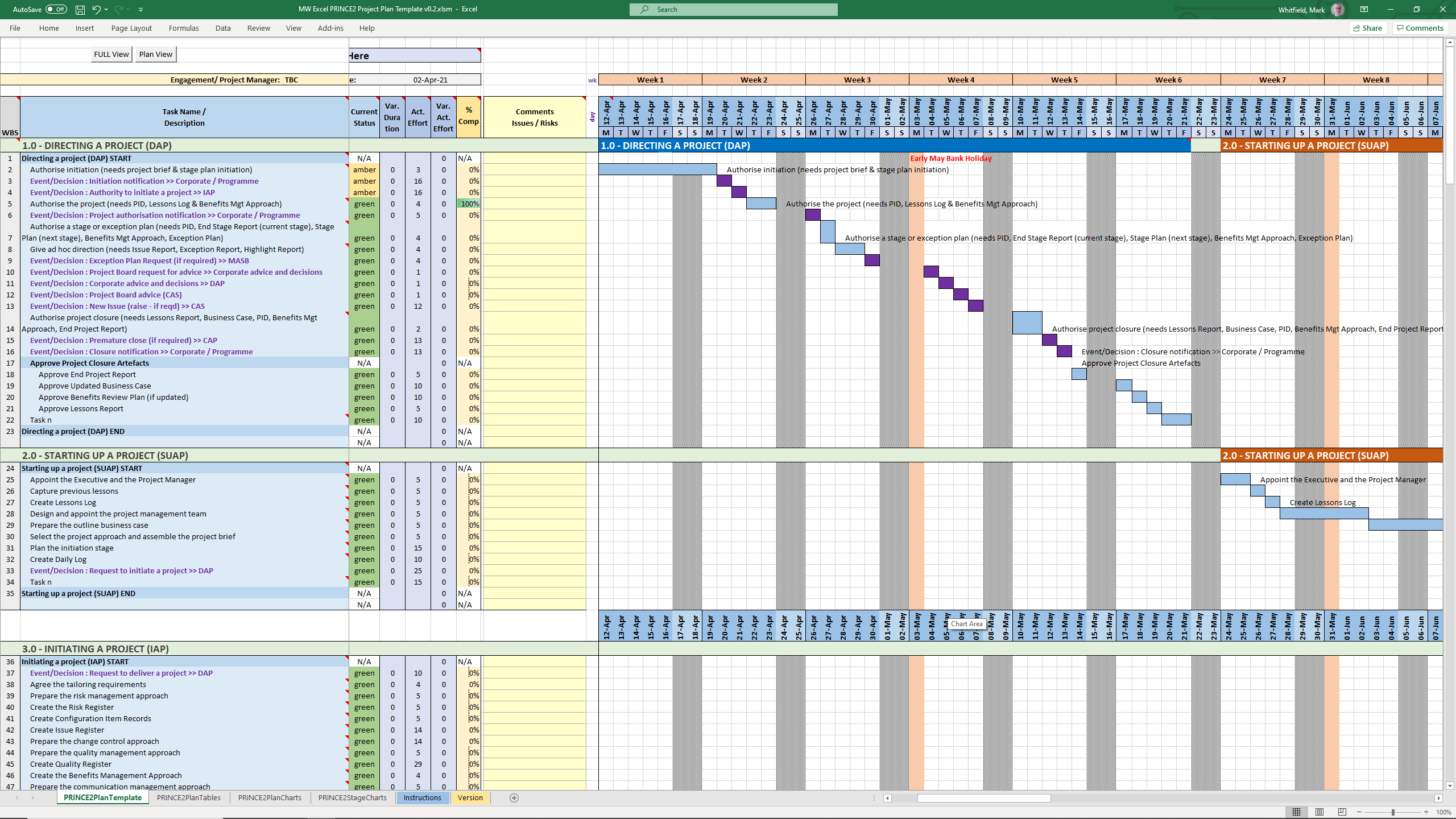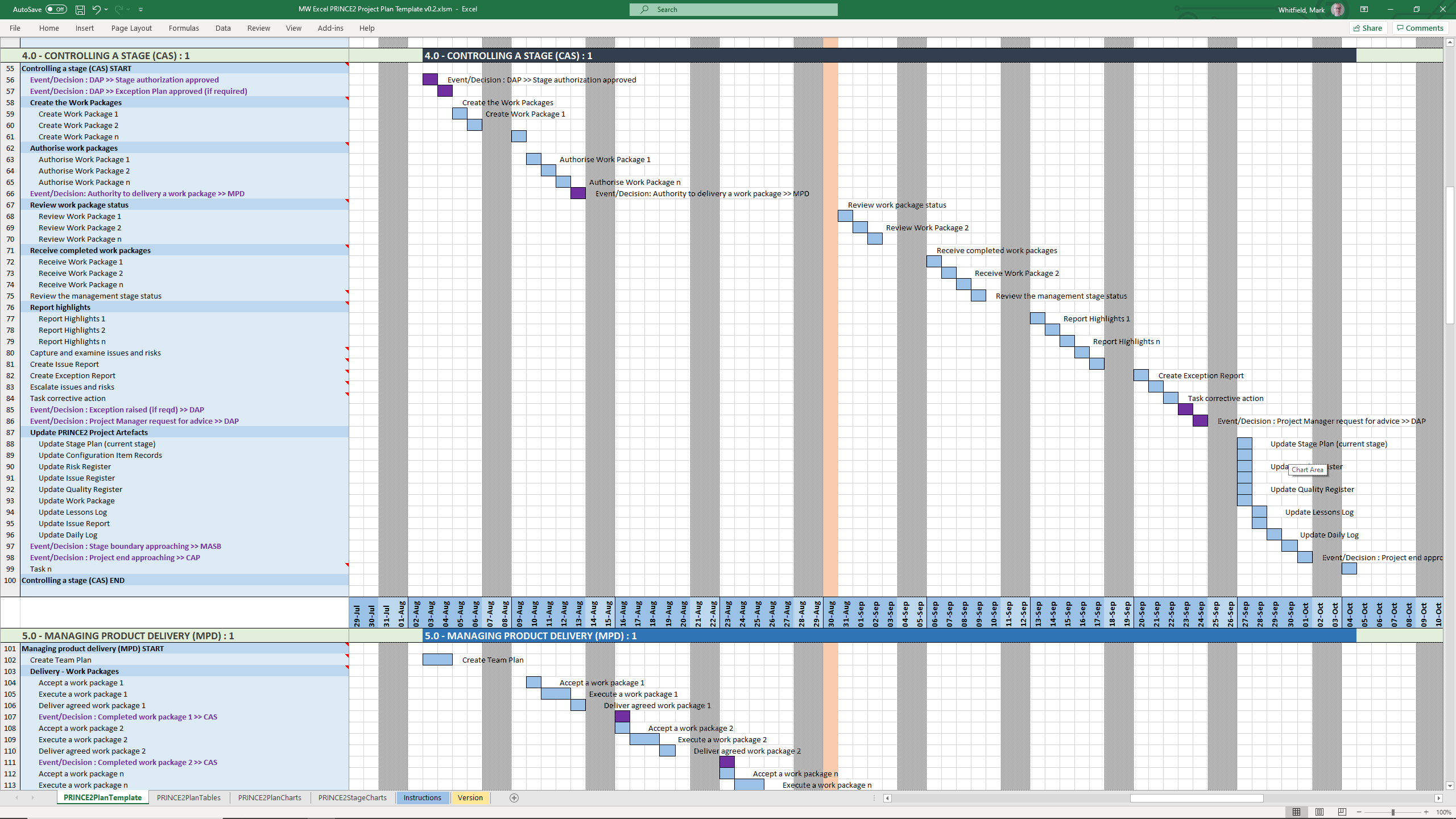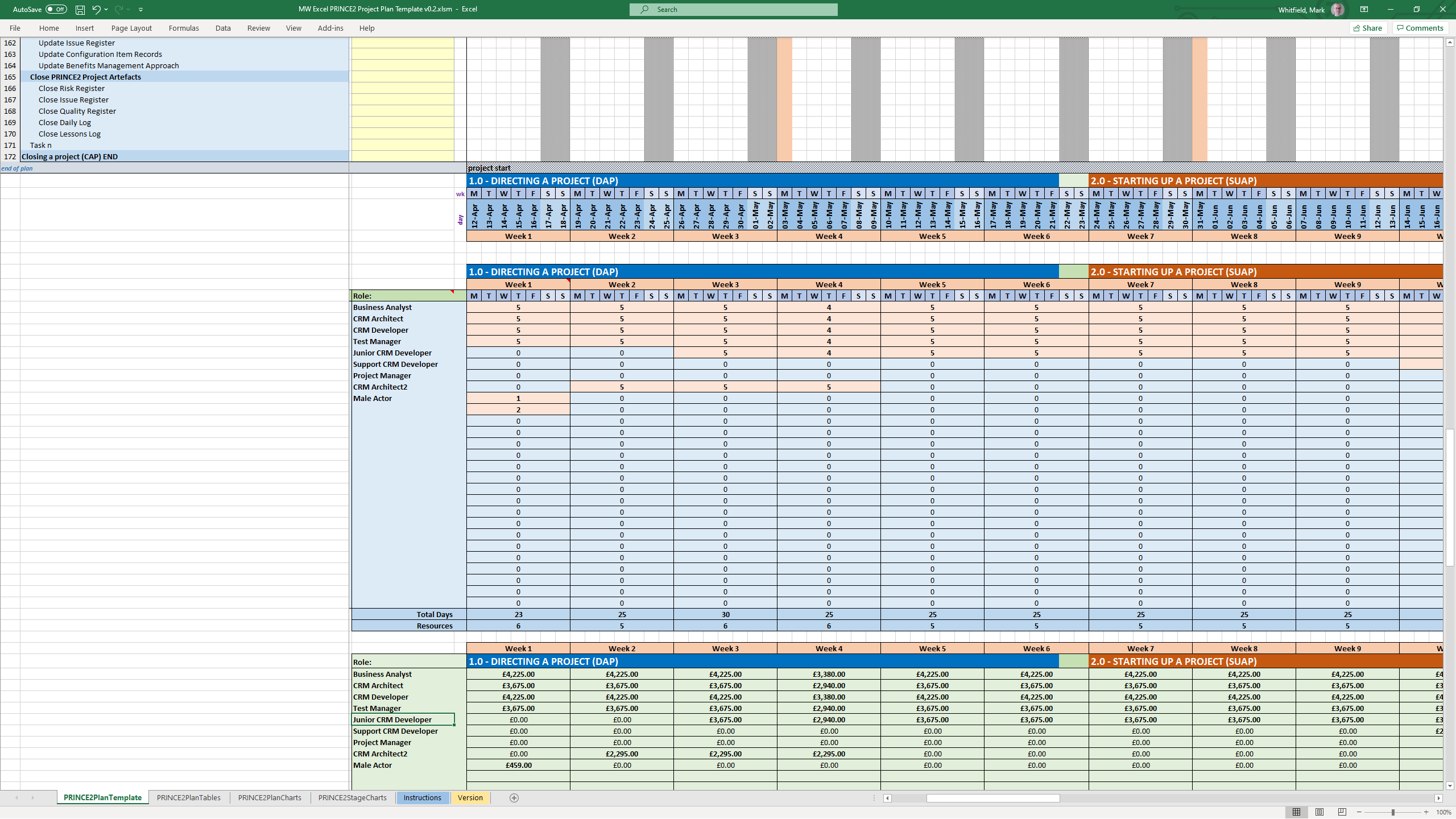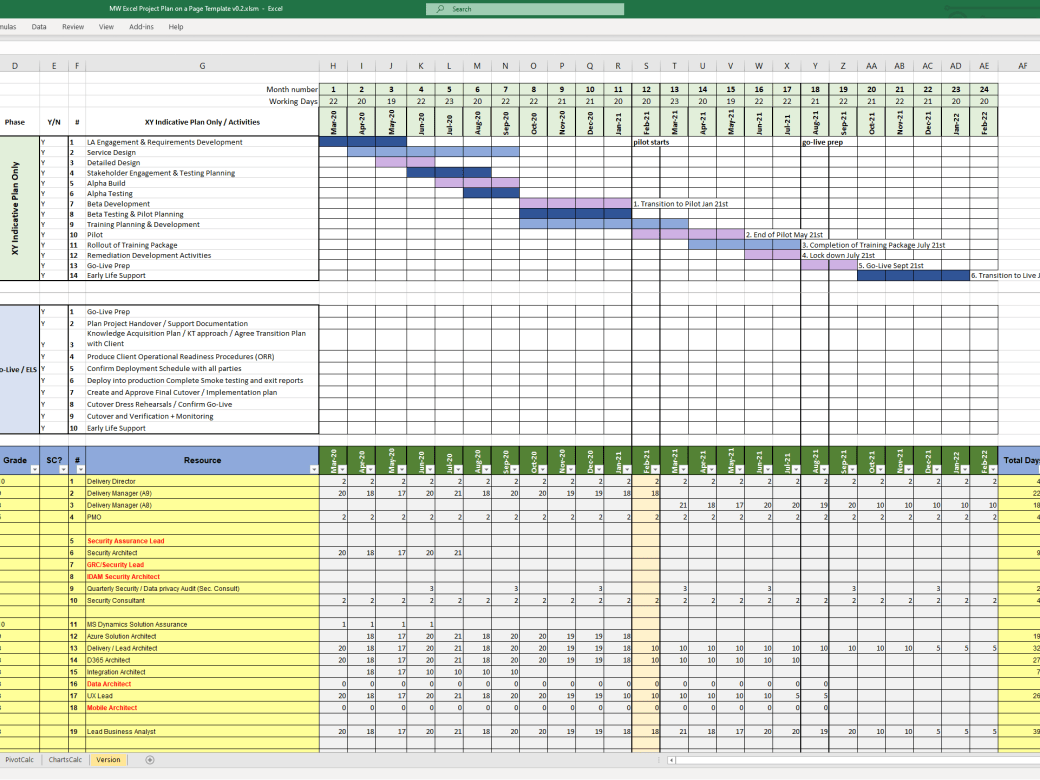
Mark Whitfield’s PROject Templates consist of a comprehensive bundle of over 200 fully editable delivery templates. Designed specifically to bridge the gap between structured Waterfall frameworks (like PRINCE2) and iterative Agile Scrum execution, the inventory covers real-world artifacts across Microsoft Project (.mpp), Excel, PowerPoint, and Word formats.
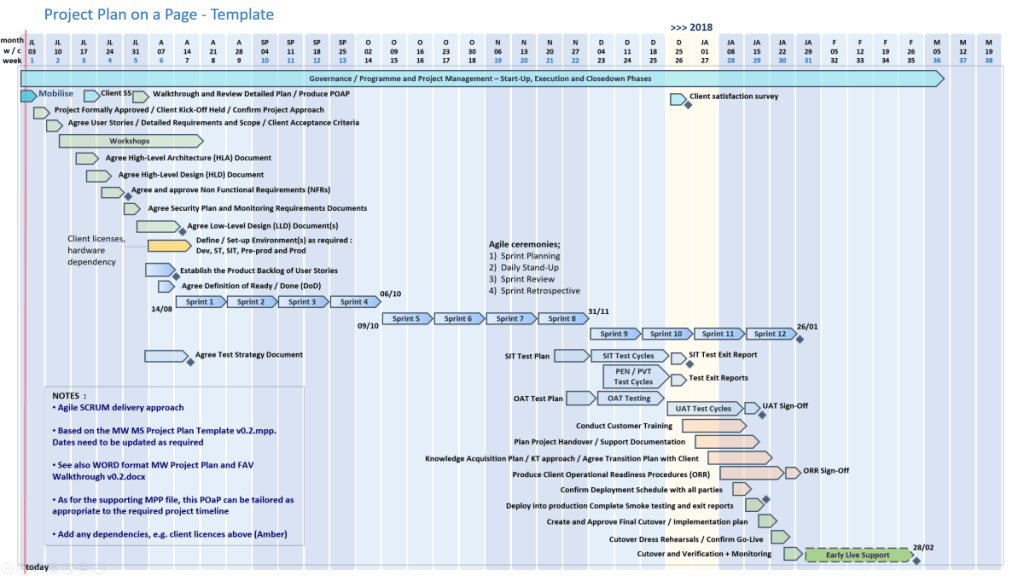
The detailed breakdown of Mark Whitfield’s template inventory by core management category includes:
1. Project Planning & Timelines
These templates provide multi-layered scheduling depending on whether you require micro-level tracking or high-level stakeholder summaries.
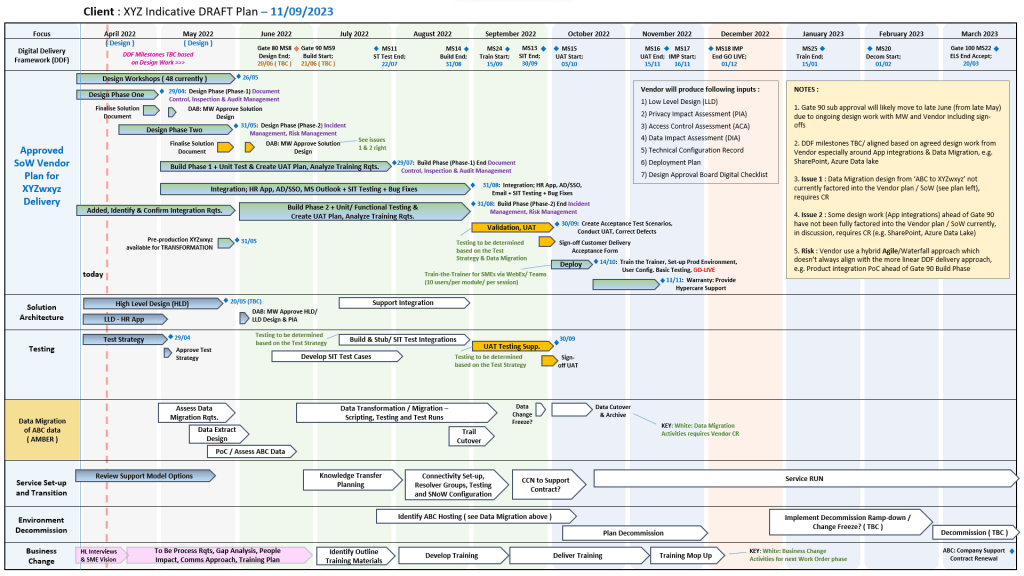
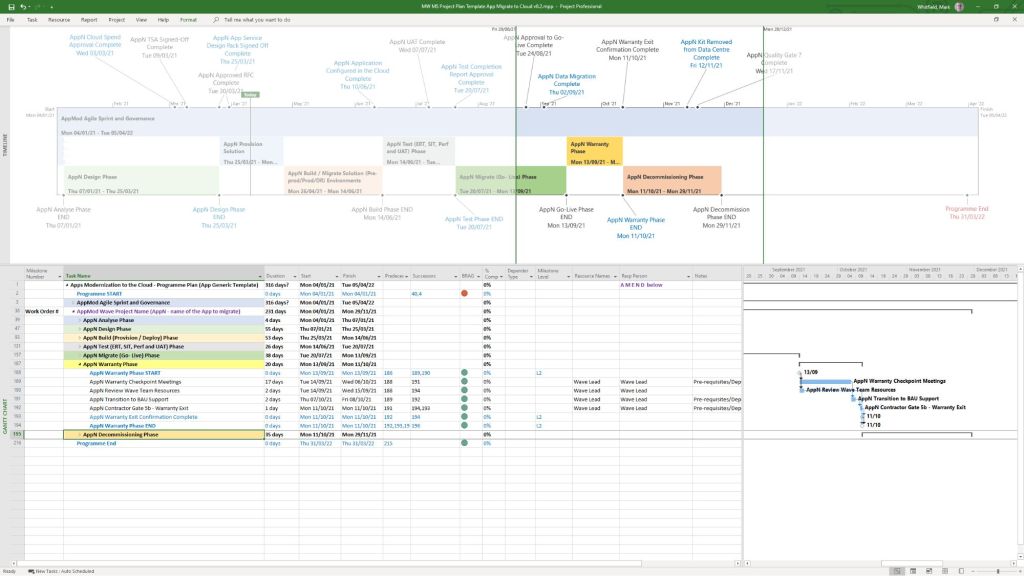
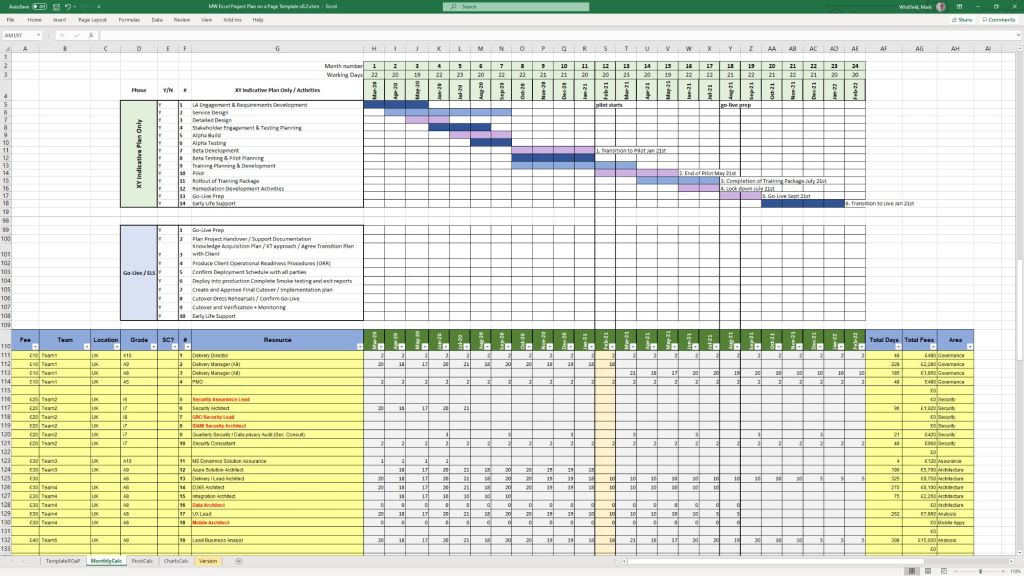
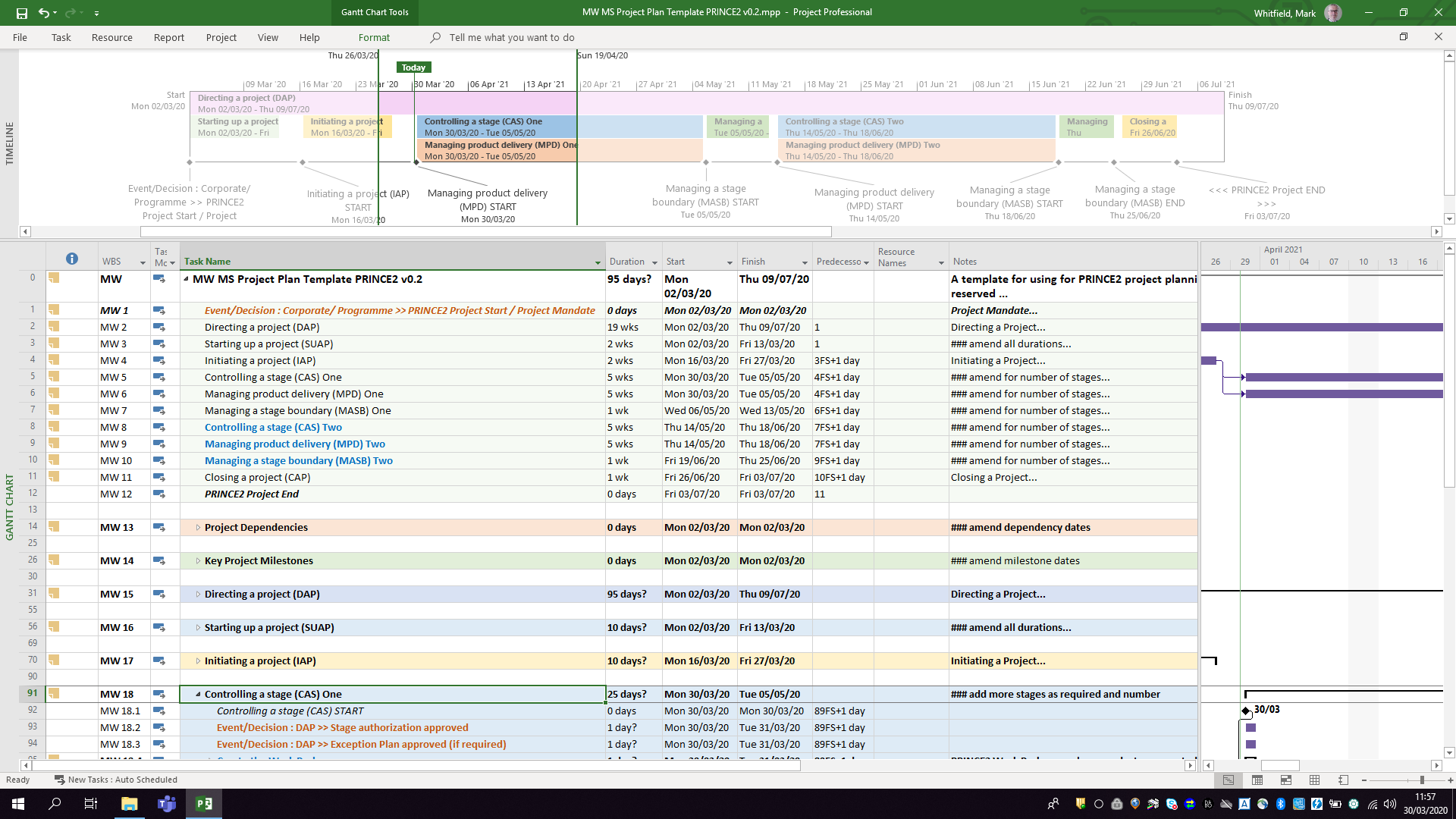
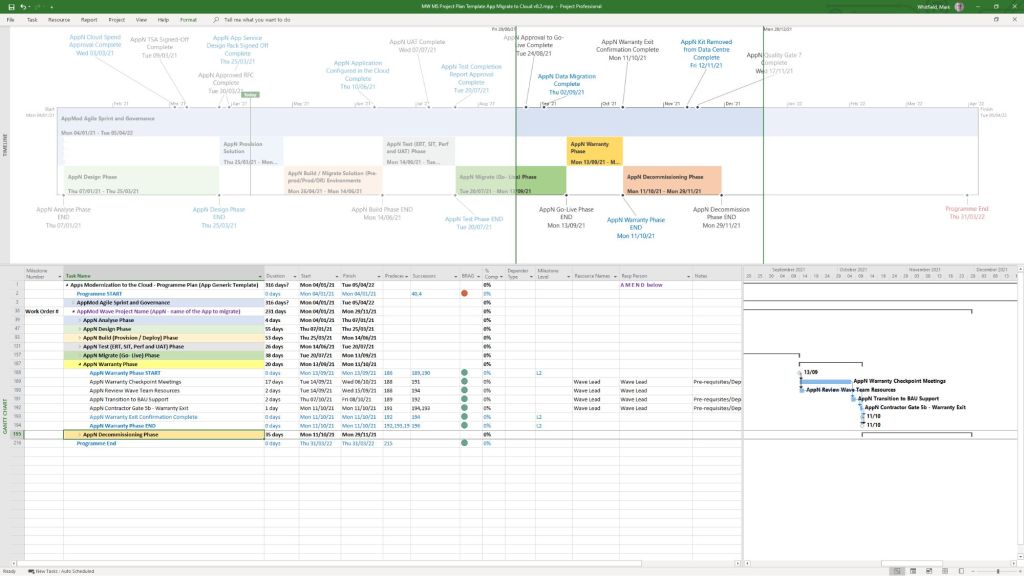
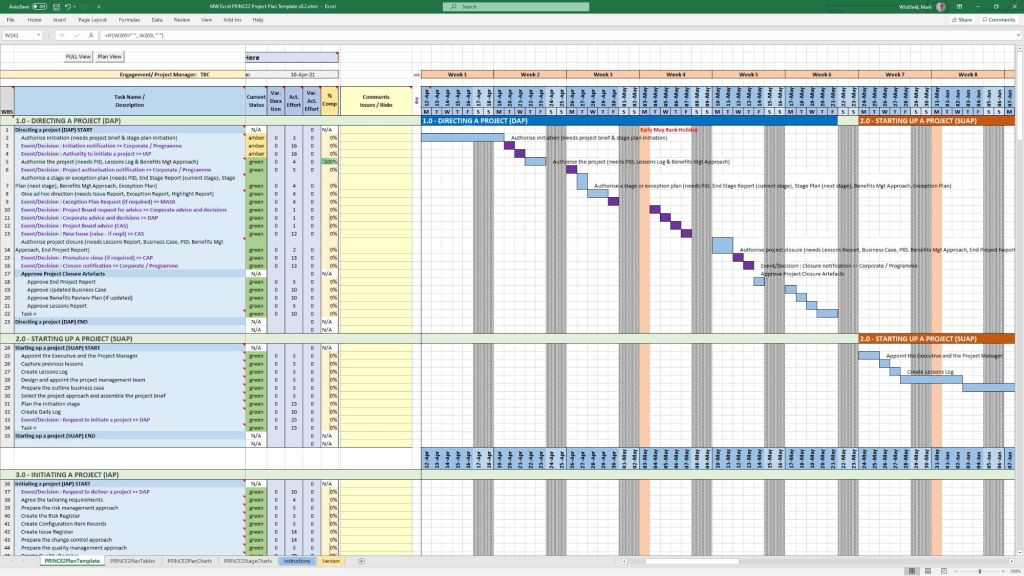
- Detailed Project Plans: Comprehensive Systems Development Life Cycle (SDLC) templates available in Microsoft Project (MSP .mpp) format as well as standalone MS Excel detailed plans for environments without dedicated project software.
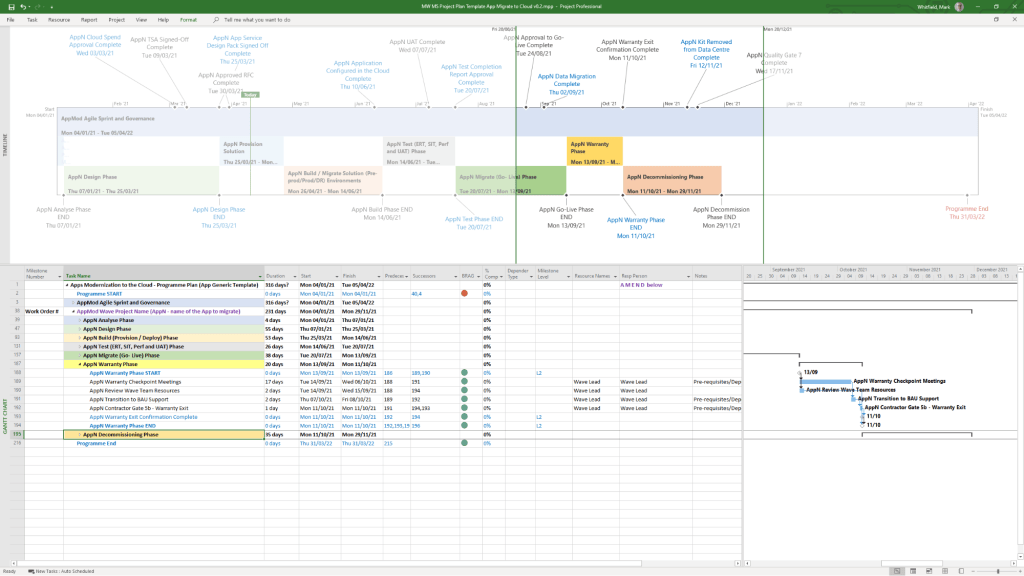
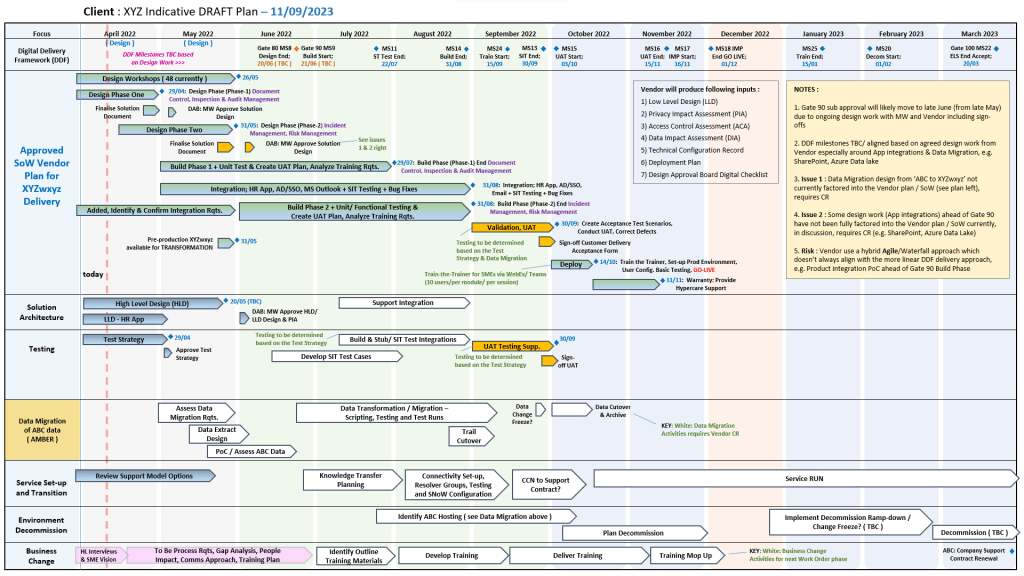
- Plan on a Page (POaP): High-level, visual Gantt chart timeline templates in Excel and PowerPoint used to present milestones and core roadmaps to executives.
- Critical Path Analysis (CPA): Structural templates mapping out sequential, dependent tasks to isolate the project’s critical path.
2. Risk, Governance & Issue Tracking
Built to operationalise PMO toolkits, these documents streamline governance and day-to-day item control.
- Comprehensive RAIDs Logs: Extensive MS Excel workbooks equipped with built-in charts featuring dedicated tracking tabs for Risks, Actions, Issues, Opportunities, Lessons Learned, and Dependencies.
- Change Requests & Variations: Specific registers within the RAIDs ecosystem to log scope creep, contract management deviations, and formal modifications.
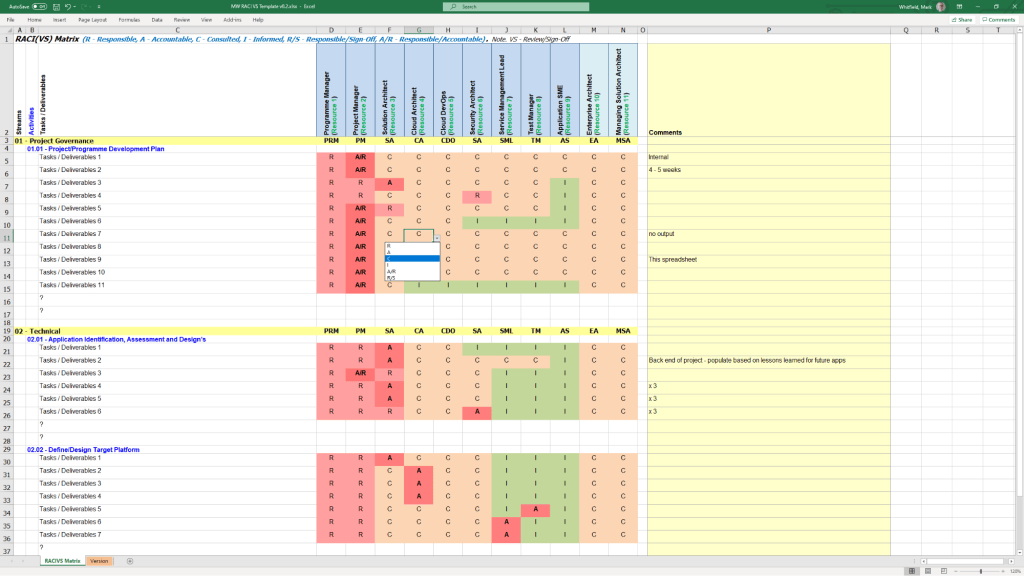
- RACI Matrices: Role assignment trackers specifying who is Responsible, Accountable, Consulted, and Informed across project milestones.
3. Financial & Resource Management
These templates bypass complex corporate accounting tools to provide lightweight, transparent budgeting directly inside spreadsheet architectures.
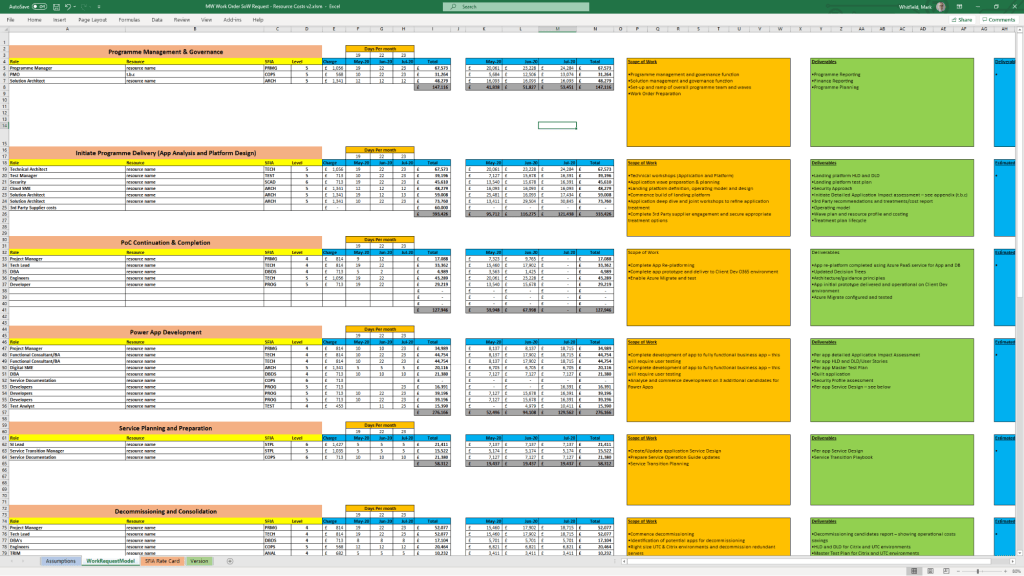
- Project Financial Trackers: Multi-currency ledgers charting forecasts vs. actual costs, profit margins, variation overheads, and project revenues.
- Client Cost Summaries: Simplified external expense templates meant to be packaged and securely shared directly with clients.
- Resource and Leave Trackers: Resource allocation grids accounting for internal/external team capacity, annual leave, and resource hierarchy organization charts.
4. Agile & Iterative Delivery Worksheets
For hybrid or purely iterative structures, the package includes functional Excel equivalents to modern project tracking tools.
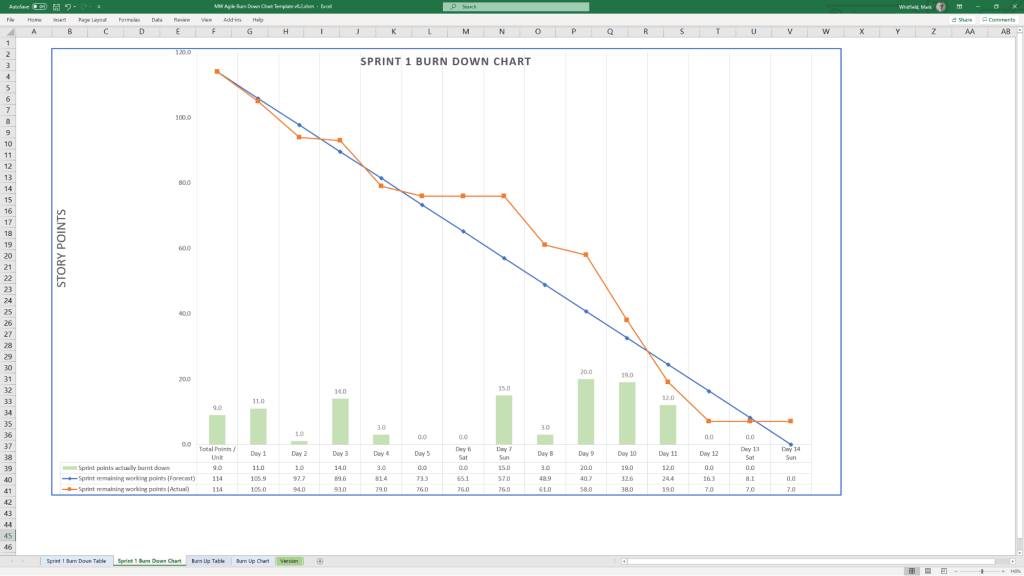
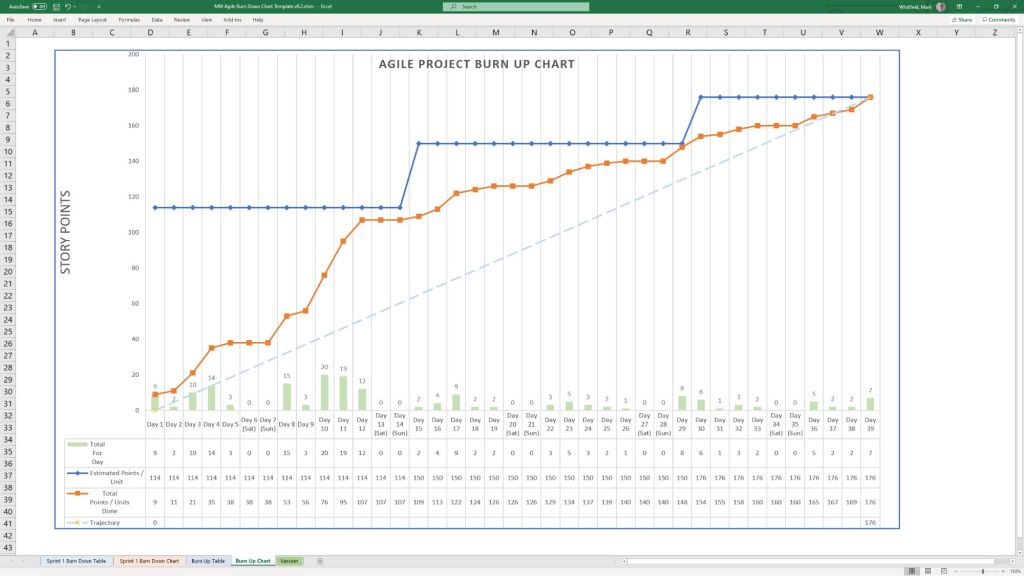
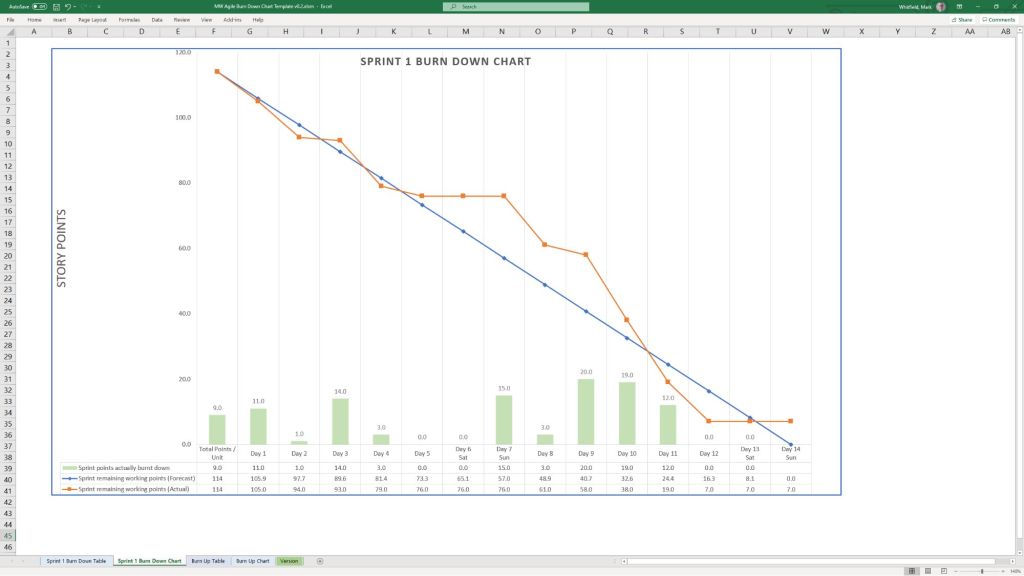
- Velocity Tracking: Standalone, manually updatable Agile Burn Down and Burn Up charts.
- Sprint Dynamics: Templates designed for managing Scrum backlogs and release cycles.
- Team Performance: Includes functional icebreakers like the Project Team Quiz template to introduce light relief into daily stand-ups.
5. Communications, Onboarding & Reporting
Designed to cover critical communication pathways, from inception contracts to routine progress updates.
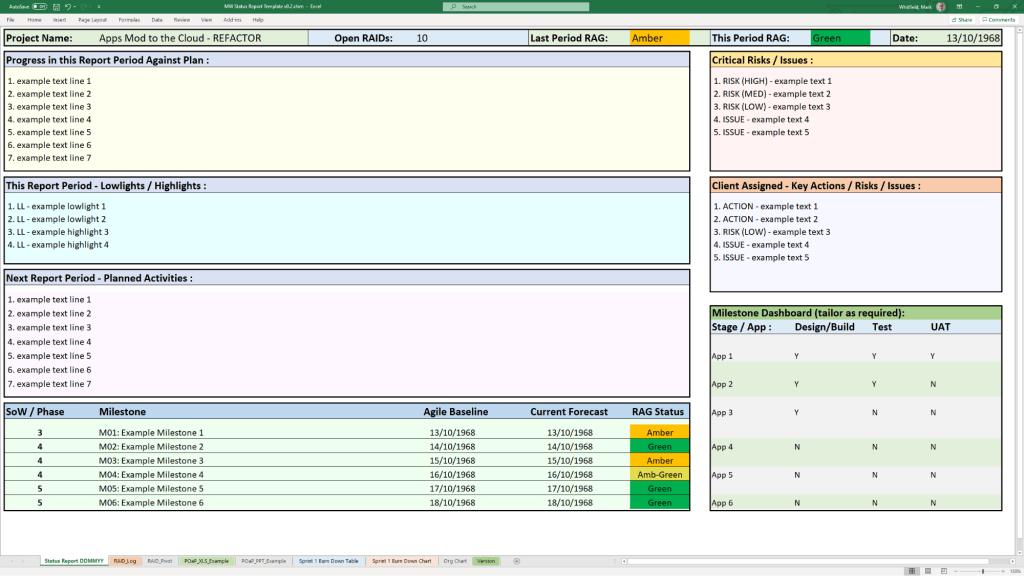
- Status Reports: Standardized weekly and monthly reporting templates distributed across one Word variation and two tailored PowerPoint styles.
- Mobilisation Kits: Comprehensive PowerPoint decks built as a unified Programme Mobilise / Team On-boarding Kit.
- Stakeholder Analysis Plans: Impact mapping grids that chart Stakeholder Influence vs. Impact to categorize communication strategies into Involve, Inform, Consult, or Monitor.
- Core Governance Files: Standard administrative files including formal Meeting Minutes, Statement of Work (SOW) guidelines, and Benefits Realisation plans.
The complete toolkit is available directly via the official PROject Templates platform or via his authorized marketplace storefront, ProjectTemplatesSoft on Etsy. Both options include a lifetime guarantee of free additions and package upgrades.