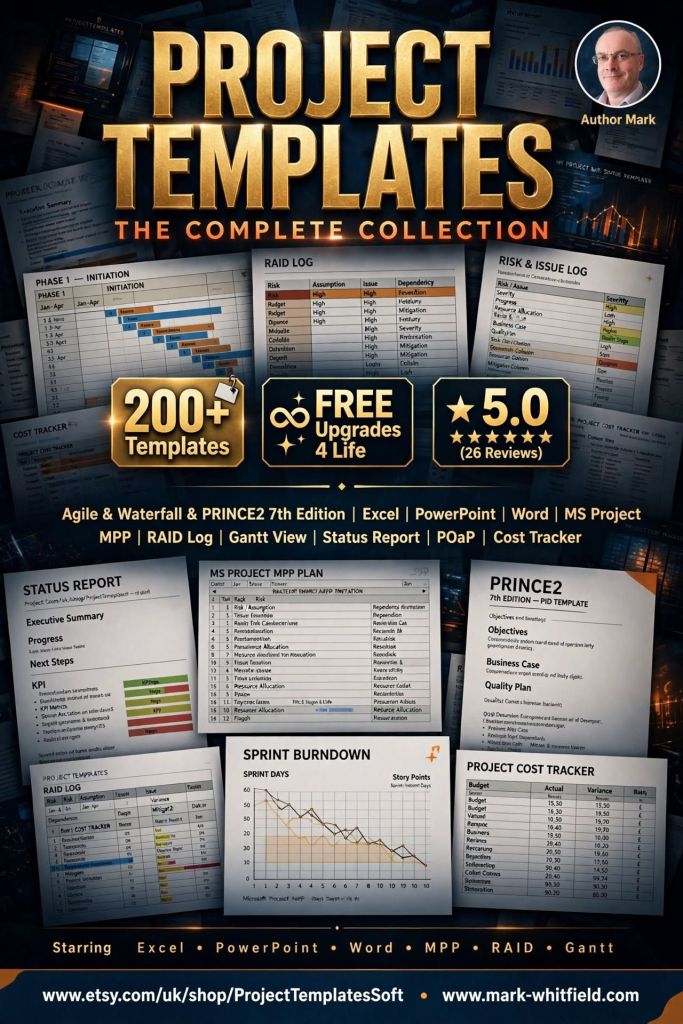
Senior IT Project Manager Mark Whitfield sells his extensive, battle-tested framework toolkits on Etsy via his official shop, ProjectTemplatesSoft and also on this website.
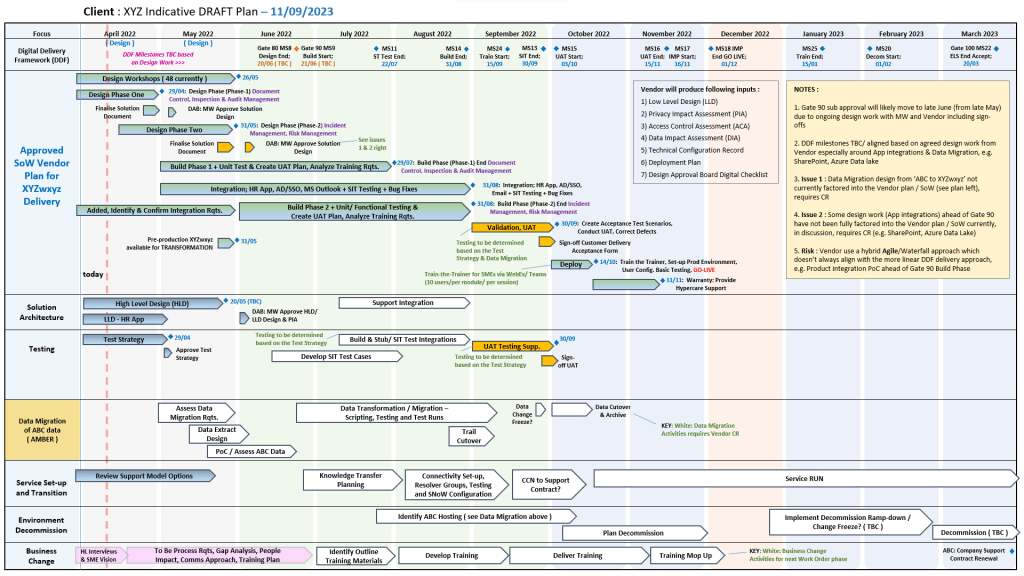
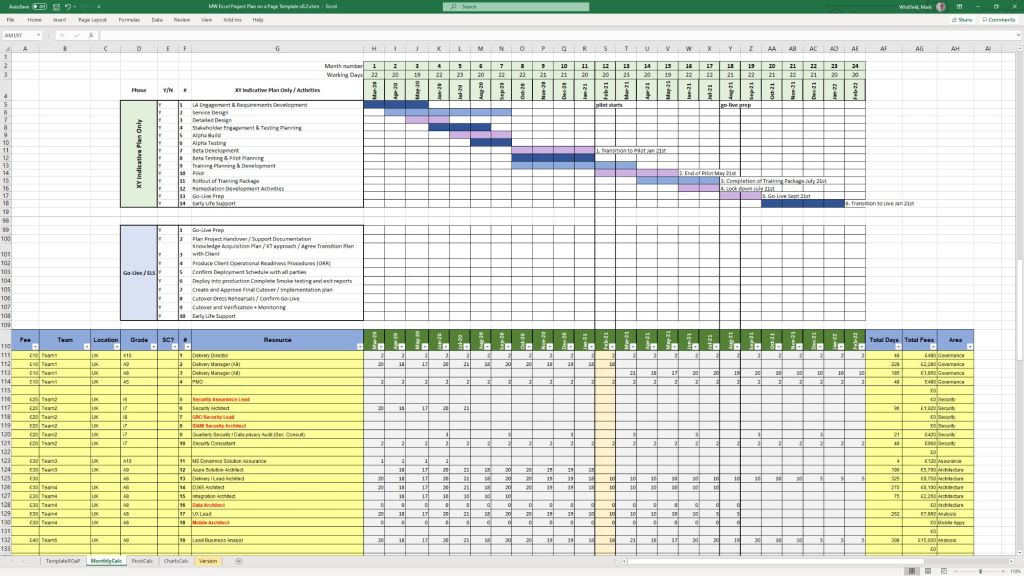
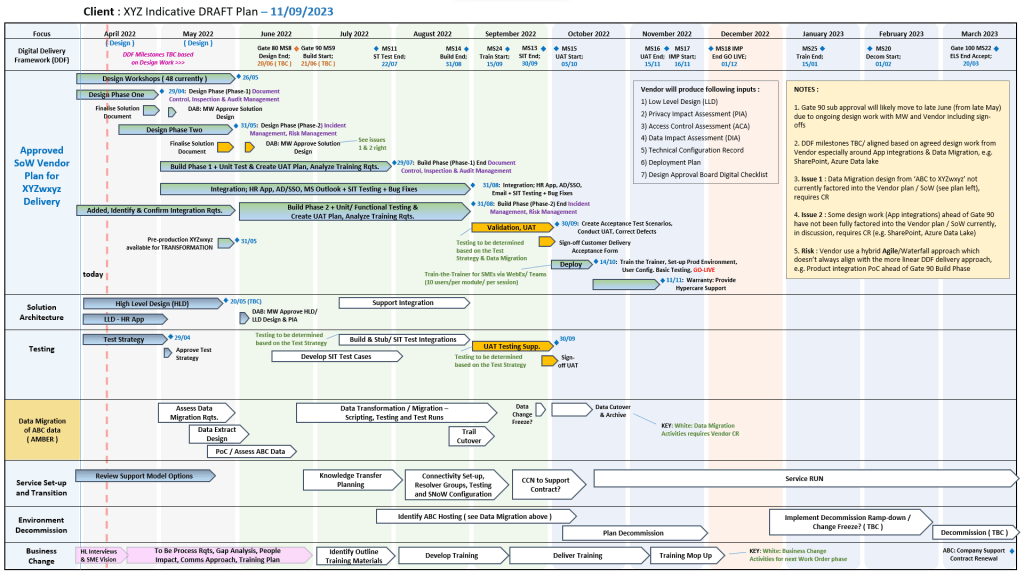
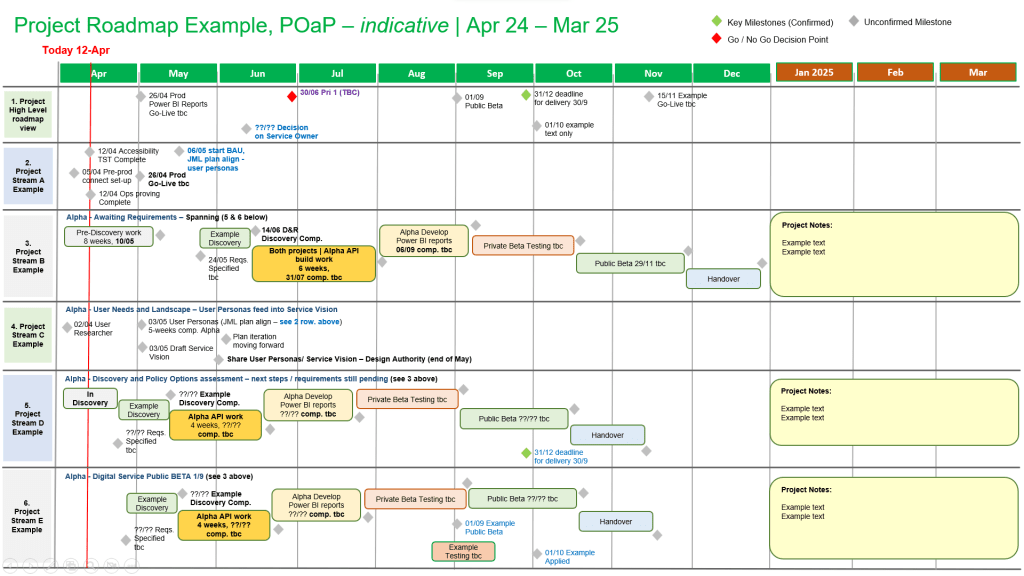
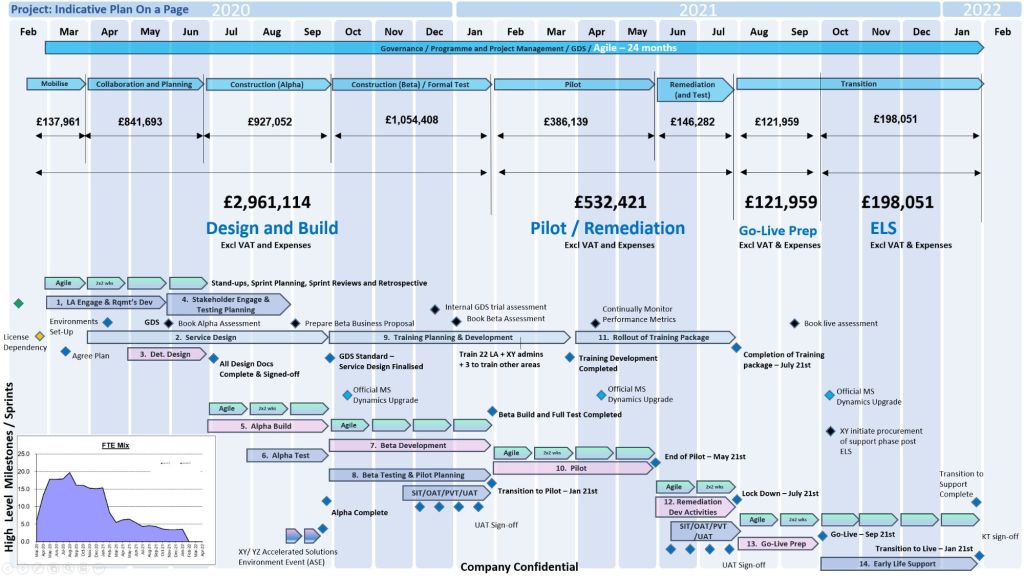
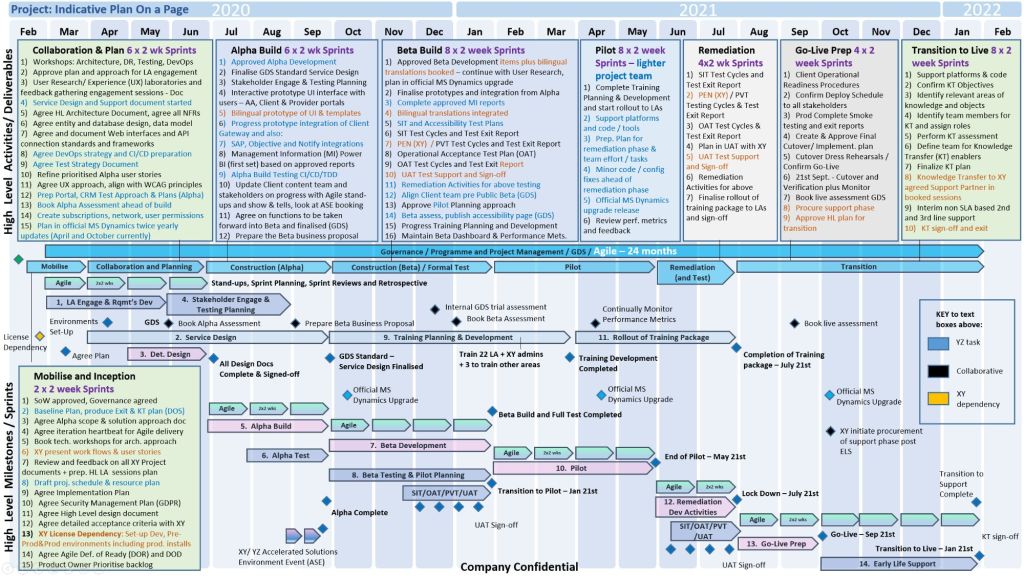
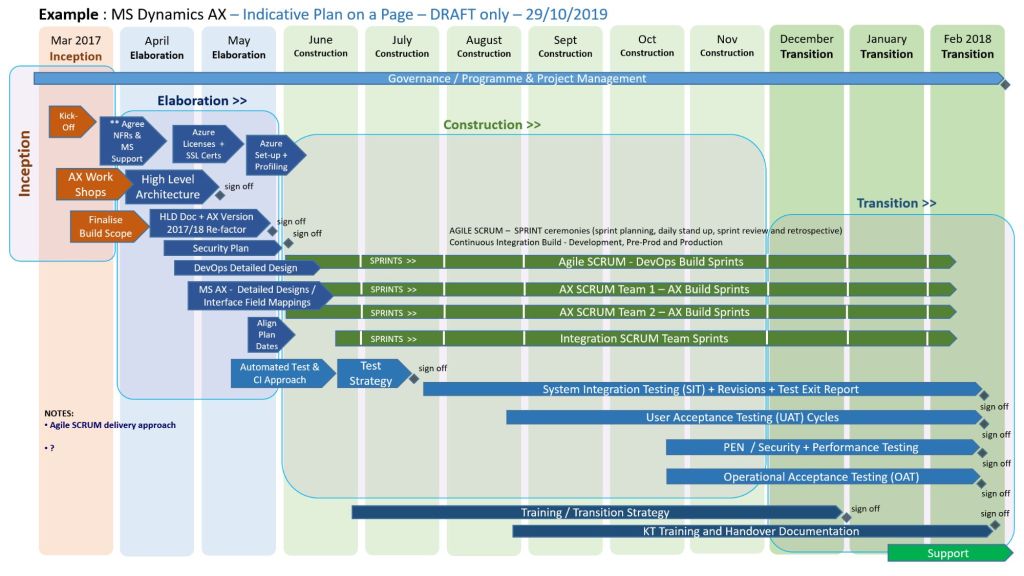
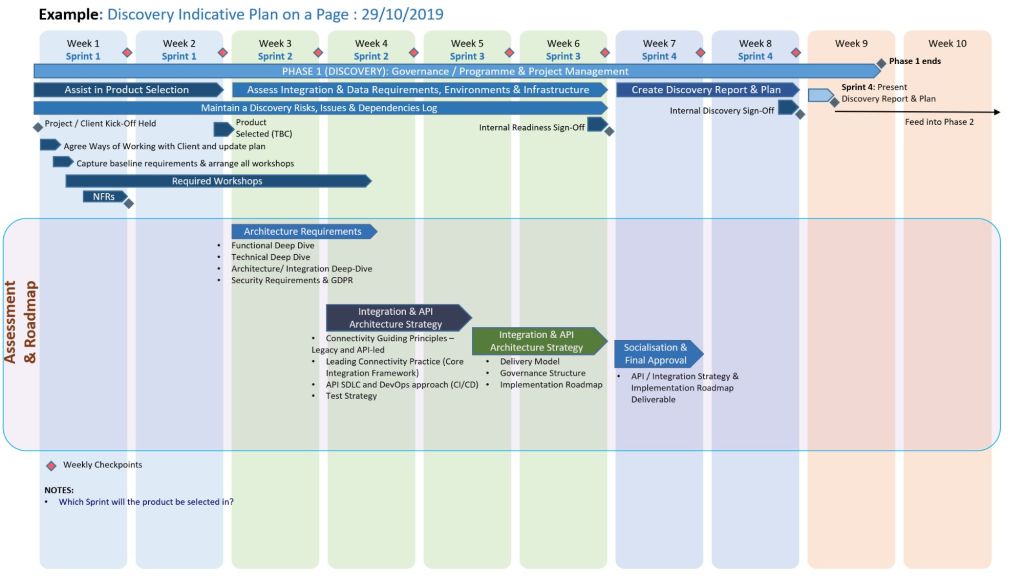
Plan On a Page POAP example
With over 30 years of Software Development Lifecycle (SDLC) experience, his kits are explicitly broken down across Agile (Scrum), Waterfall (PRINCE2), and hybrid project delivery frameworks.
Mark Whitfield | Senior Project Manager
🏃♂️ Agile & Scrum SDLC Templates
Designed specifically for iterative software delivery, these tools focus on short execution cycles, continuous feedback, and visual tracking:
The IT Project Management (PM) toolkits created by Mark Whitfieldprovide a comprehensive digitized repository of over 200 tailored, editable Microsoft Office templates designed to structure, track, and report on software delivery lifecycles (SDLC).
Hosted on his platform PROject Templates, these artifacts bridge the gap between fast-paced Agile sprint execution and structured governance frameworks like PRINCE2 and Waterfall.
Here is an overview of the core template categories and artifacts included in the toolkit:
📅 Schedule, Planning & Timelines
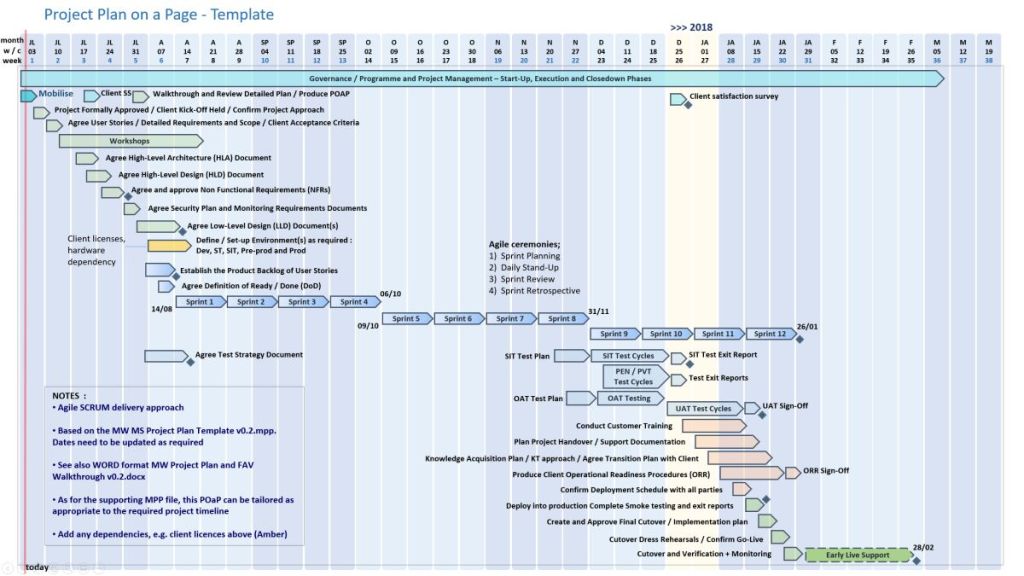
Detailed SDLC / PRINCE2 Project Plans: Native Microsoft Project (.mpp) and Excel (.xlsx) files featuring stage-gate structures, resource sheets, and milestone tracking.
Plan on a Page (POaP): Over 35 PowerPoint variations and simplified Excel dashboards used to present high-level, visual timelines to executives and senior stakeholders.
Agile Scrum Sprint Planner & Delivery Plan: Templates constructed in Excel to track sprint velocity, capacity planning, and product backlogs.
⚠️ Risk, Governance & Tracking
Comprehensive RAID Logs: Centralized trackers mapping Risks, Actions, Issues, and Dependencies, including secondary tabs for opportunities, lessons learned, and change requests.
RACI Matrices: Responsibility assignment matrices used to formally define team roles (Responsible, Accountable, Consulted, Informed) across delivery workstreams.
Project Charter Blueprint: A foundational setup template used to establish formal authorization, align stakeholders, and outline scope boundaries.
📊 Performance & Financial Tracking
Project Financial Tracker: Metric dashboards containing charts for measuring internal and external forecast versus actual costs, profit margins, and expense variances.
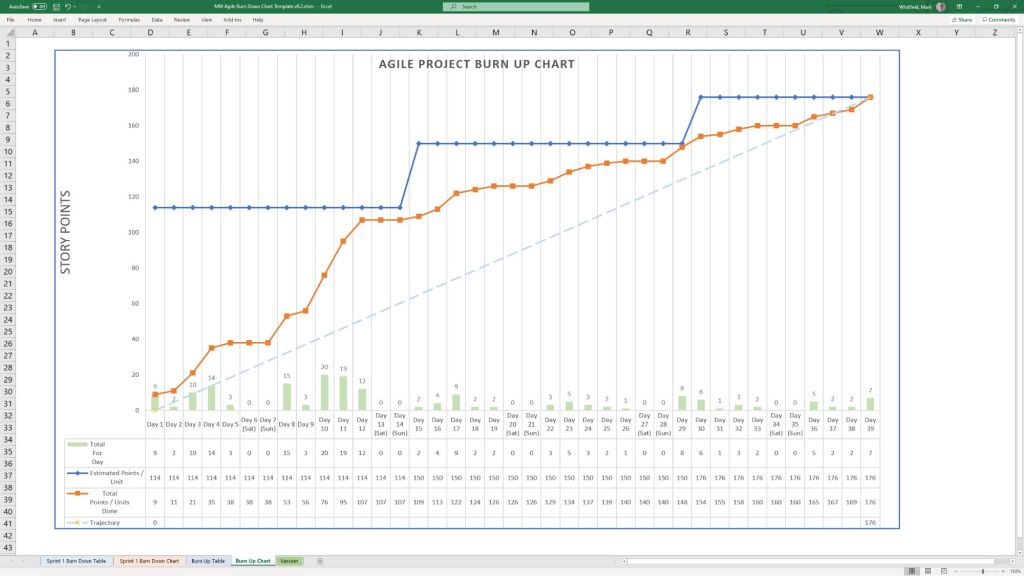
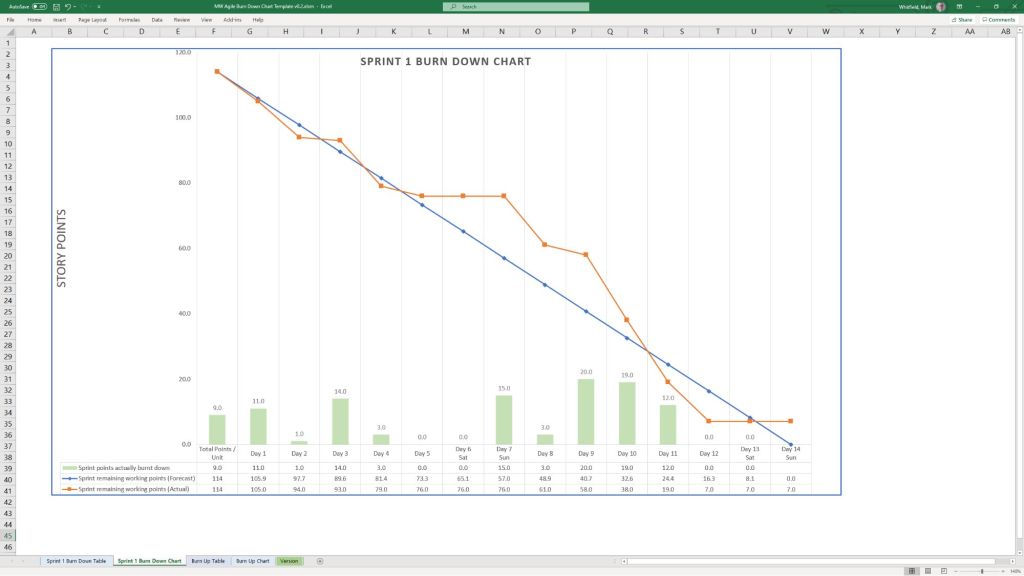
Agile Burn Down & Burn Up Charts: Standalone spreadsheet alternatives built specifically for environments where dedicated Agile software like Jira or Azure DevOps is unavailable.
📢 Status Reporting & Communication
Weekly/Monthly Status Reports: Formatted templates available in Word and PowerPoint summarizing project health, milestone progress, and immediate priorities for internal and client updates.
Project Kick-Off Slide Decks: Presentation baselines to align teams, outline deliverables, and walk members through execution workflows at launch.
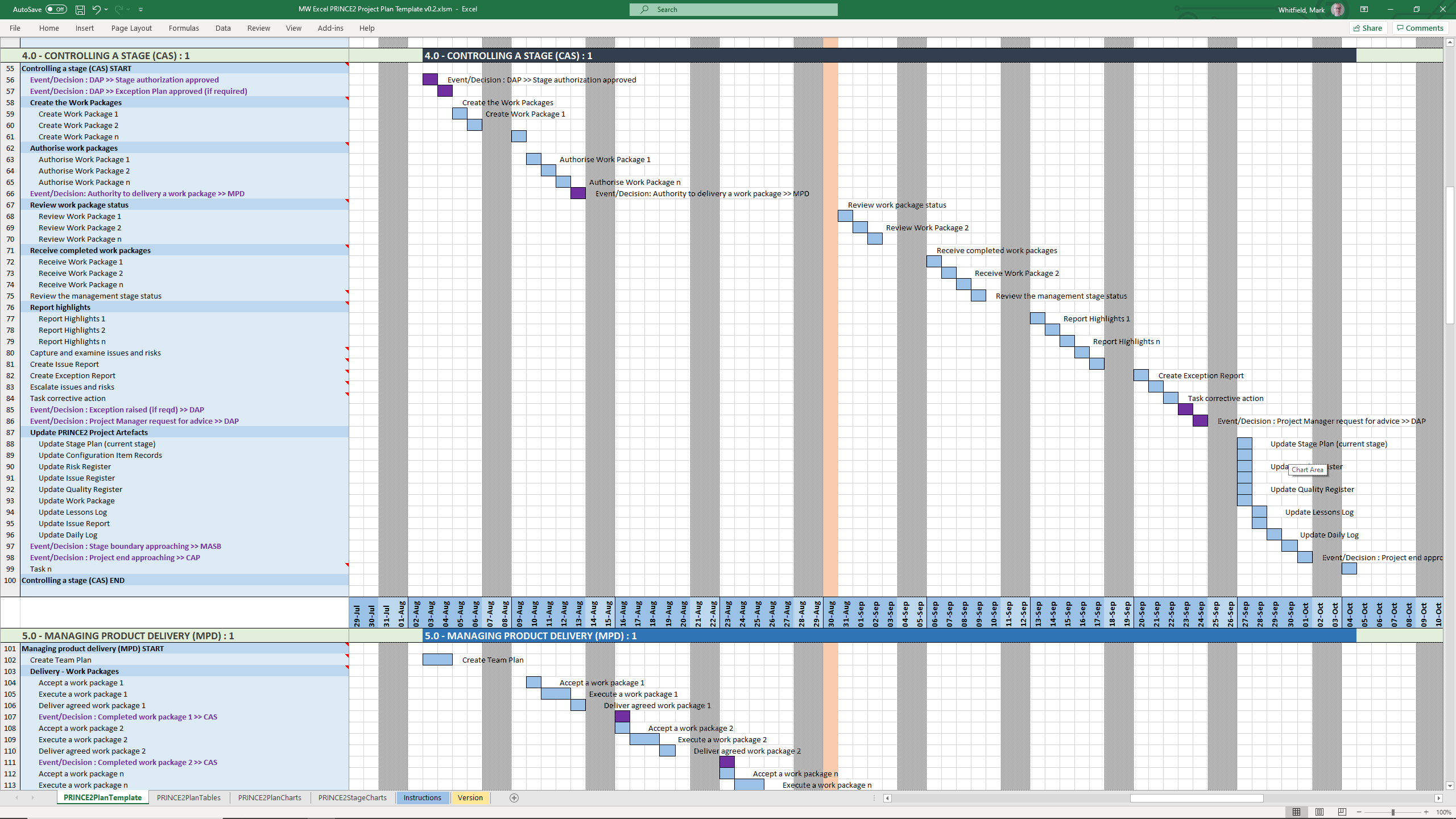
You can find downloadable PRINCE2 project templates in Excel (.xls/.xlsm) and Microsoft Project (.mpp) formats across several specialized platforms. Because PRINCE2 is a highly structured methodology, standard templates usually map its specific processes (like Starting Up, Initiating, and Controlling a Stage) directly onto Gantt charts and tracking sheets.
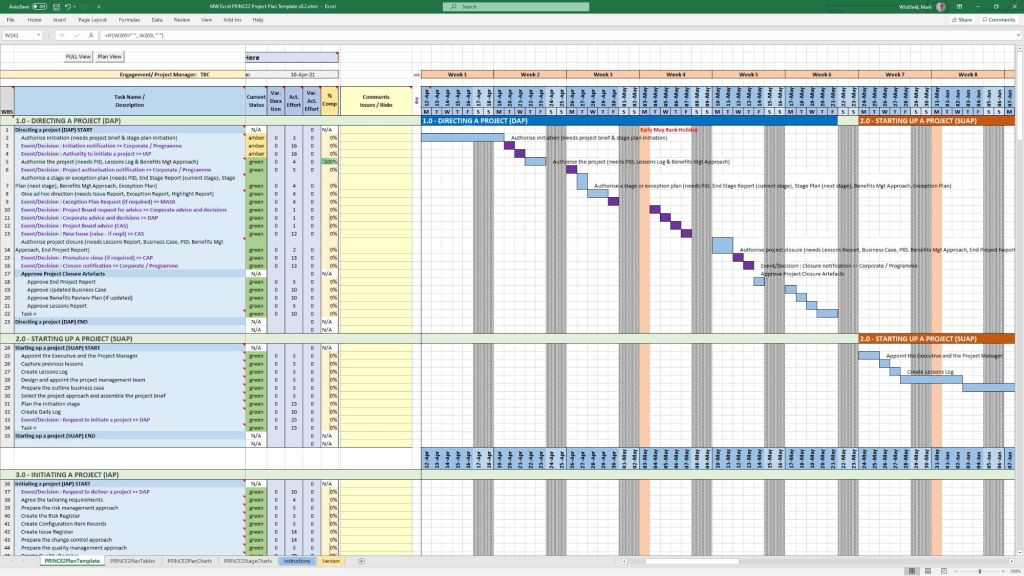
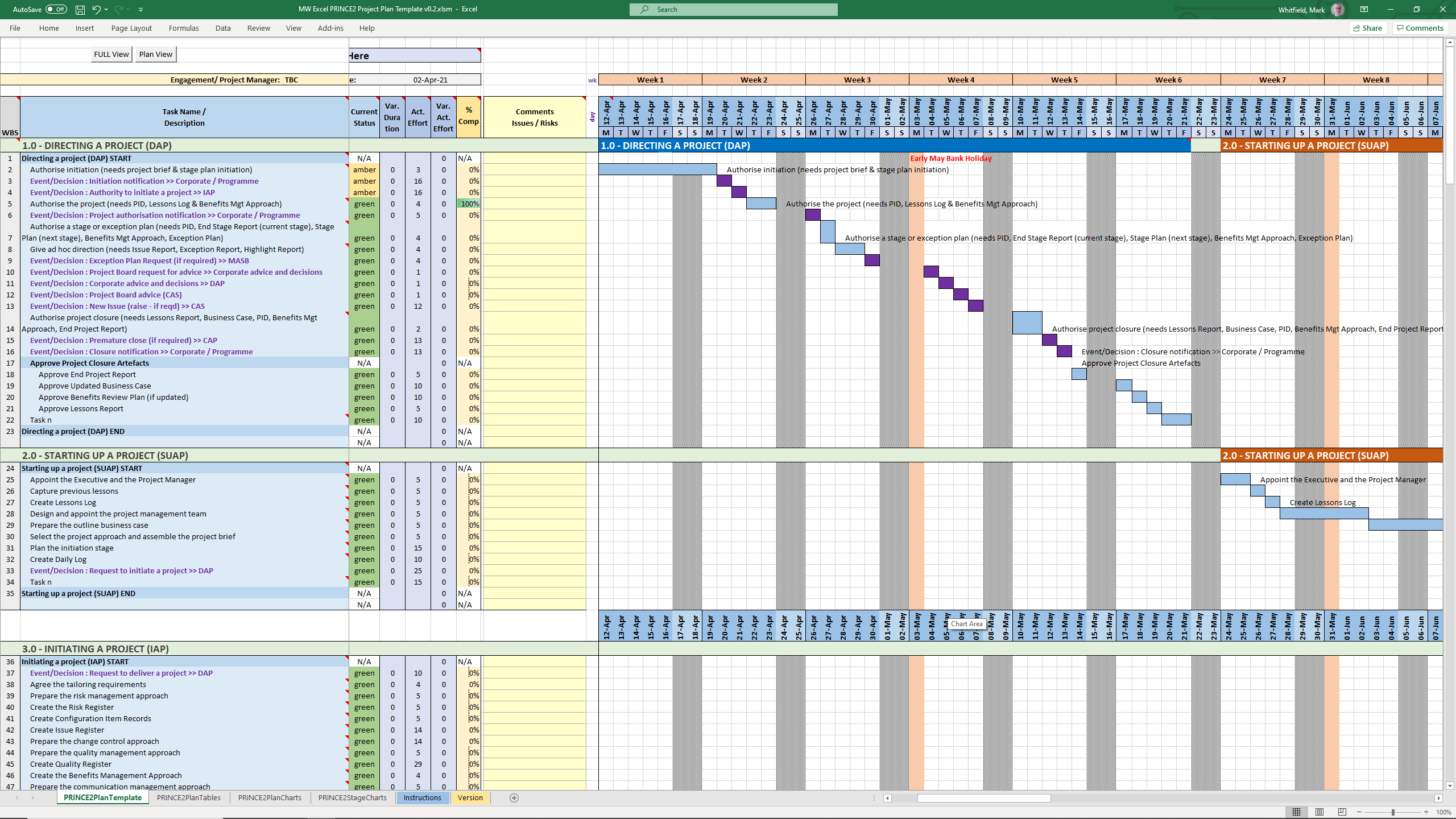
PRINCE2 MS Excel .xls plan in a spreadsheet
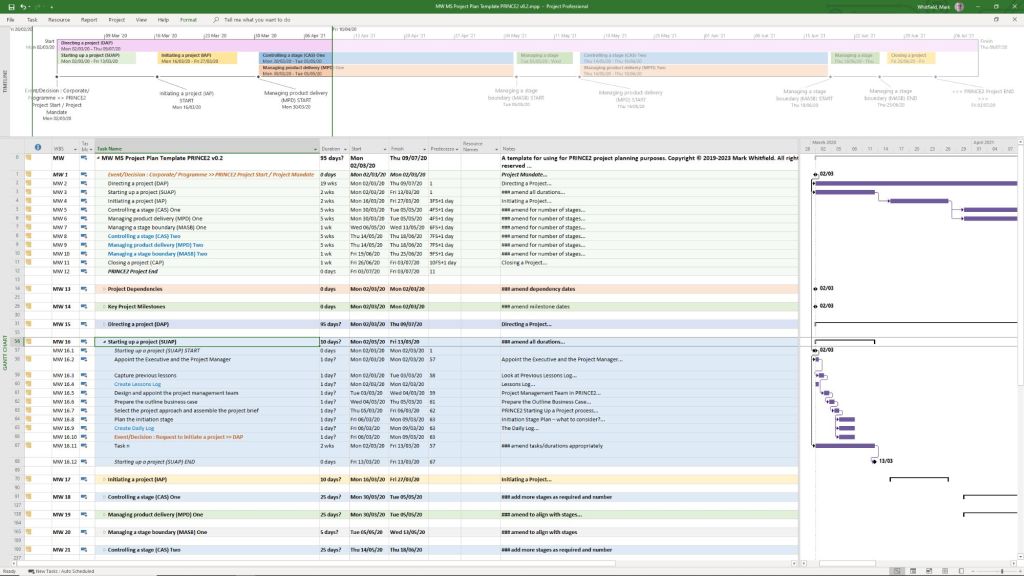
PRINCE2 MS Project .mpp plan in a project file
The primary download options, ranging from premium practitioner bundles to free resource packages, are categorized below:
Comprehensive Premium Bundles (MPP & XLS)
If you require a fully integrated toolkit built specifically for the official PRINCE2 framework, individual project management practitioners offer comprehensive marketplace downloads:
Mark Whitfield PM Templates: Offers a dedicated seventh edition package including MW MS Project Plan Template PRINCE2 v0.2.mpp alongside its exact equivalent spreadsheet MW Excel PRINCE2 Project Plan Template v0.2.xlsm. You can download this Prince2 toolkit package plus others, on the Mark Whitfield Official Site or through the Mark Whitfield Etsy UK Shop.
Flevy Marketplace: Provides highly structured, professional enterprise files. You can purchase and download the PRINCE2 Templates + Microsoft Project MPP & MS Excel Document directly from their platform, which packs the MPP tracking timelines and XLSM / XLS sheets together.
PRINCE2 project templates, Excel (.xls/.xlsm) & MS Project (.mpp) formats
Microsoft Excel XLS PRINCE2 spreadsheet screenshots
Microsoft Excel XLS PRINCE Project Plan with Task Descriptions
Microsoft Excel XLS PRINCE Project Plan with Gantt View 1
Microsoft Excel XLS PRINCE Project Plan with Gantt View 2
Microsoft Excel XLS PRINCE Project Plan with Gantt View 3
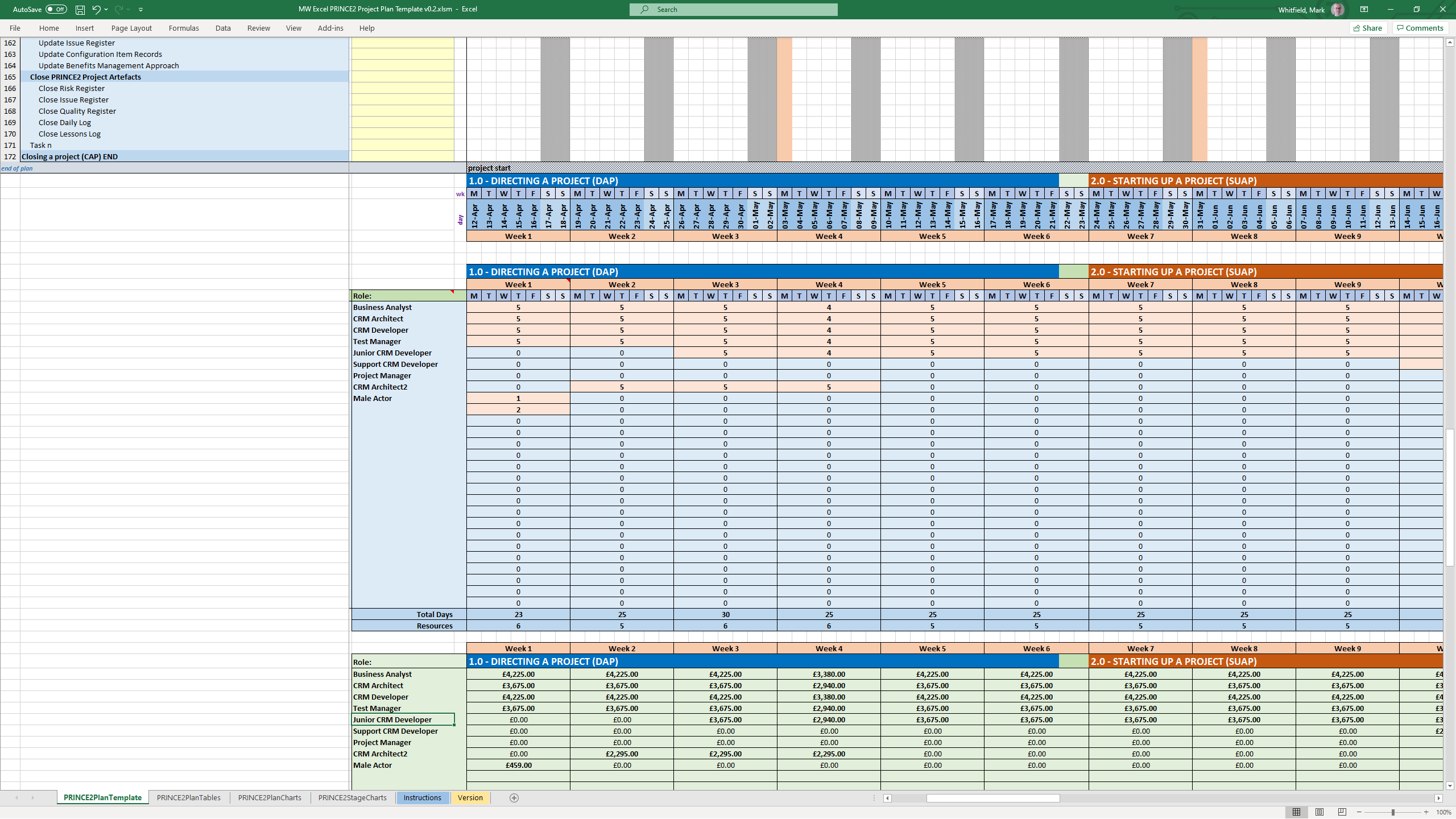
Microsoft Excel XLS PRINCE Project Plan with Delivery Costings
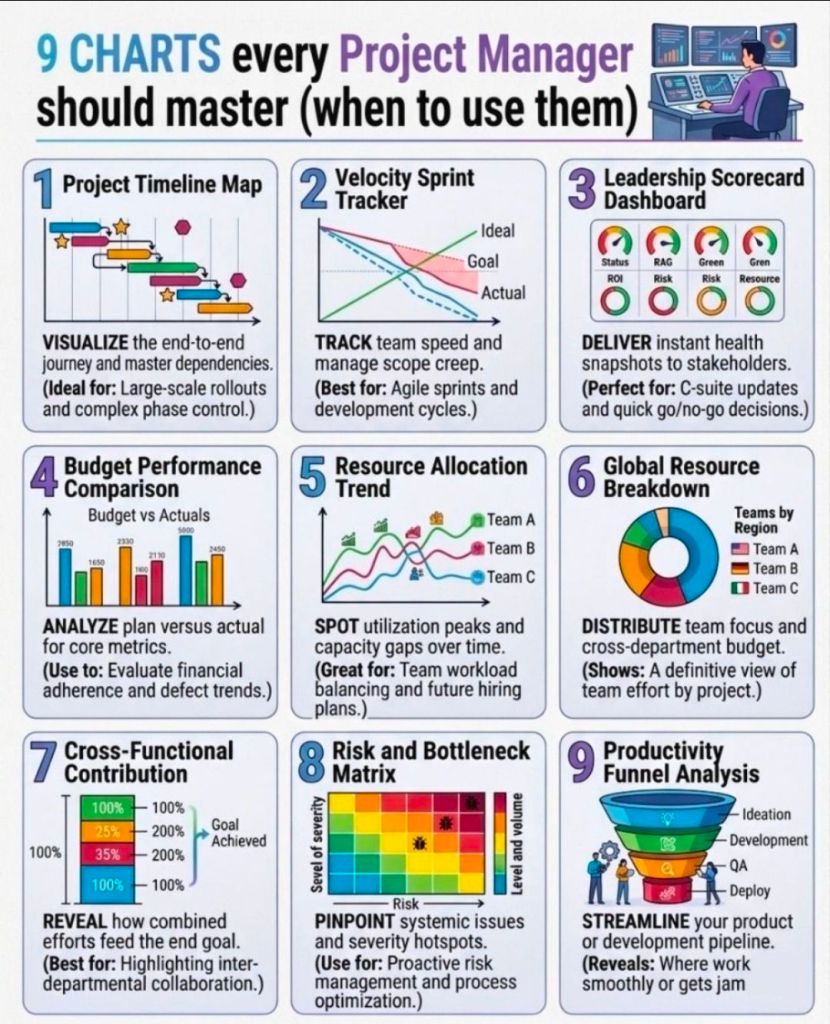
Microsoft Excel XLS PRINCE Project Plan with Charts
Microsoft Excel XLS PRINCE Project Plan with PRINCE2 Stage Charts
Standard Artifacts Included in Download Packages
When downloading a comprehensive .zip toolkit, the package typically contains the core structural elements of the framework divided across your scheduling software:
MS Project (.mpp): A pre-constructed Prince2 waterfall delivery layout mapped with the 7 key PRINCE2 stages, built-in dependency workflows, milestone gates, and methodological prompts embedded in the task notes.
MS Excel (.xls/.xlsm): Mirrored project planning sheets (with costing) utilizing native formulas to auto-populate Gantt charts, alongside targeted operational spreadsheets like RAID logs (Risks, Assumptions, Issues, Dependencies), RACI matrix charts, resource trackers, and project budget tools.
A Microsoft Excel project backlog template is a prioritized, centralized list of all pending work—features, user stories, bug fixes, and tasks—that need to be completed, often used in Agile, Scrum, or Kanban frameworks to manage team workload and project scope.
Key Columns for an Effective Backlog Template
To create a detailed backlog, the following columns are essential for tracking, prioritizing, and assigning work items:
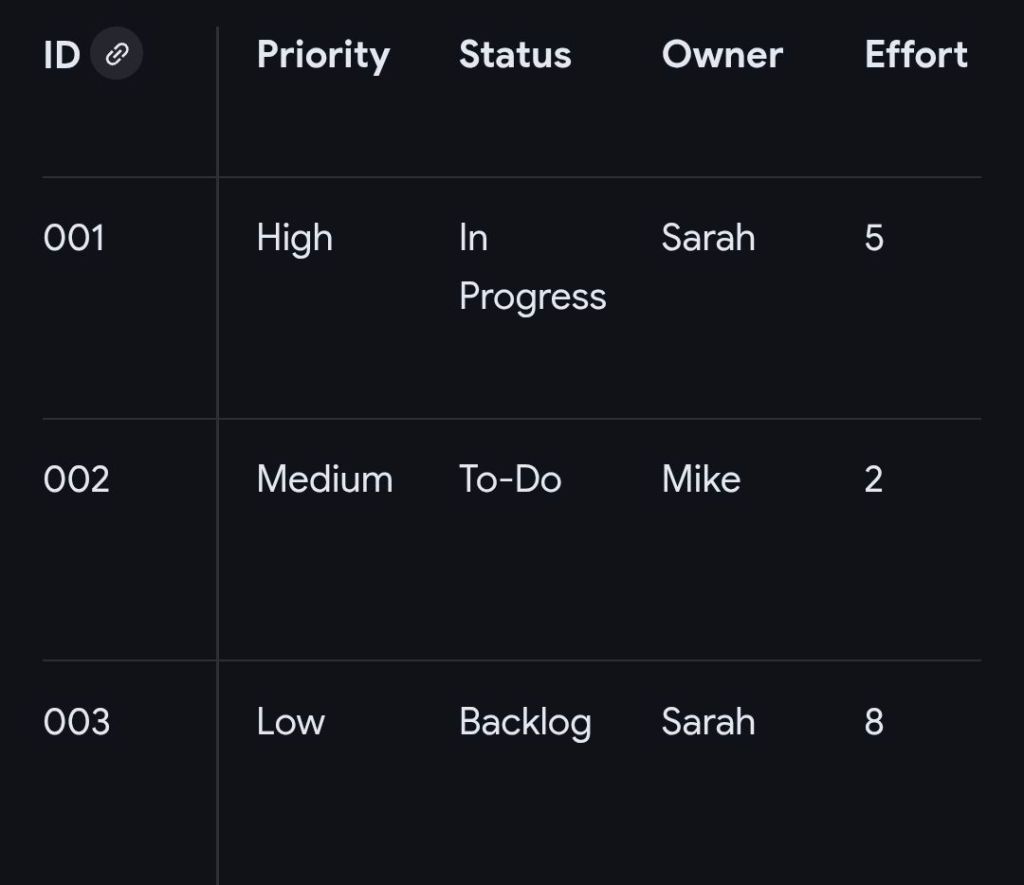
ID / Task Number: A unique identifier for each item (e.g., P-001, P-002) for easy referencing.
Item Name/ Title: A concise title describing the task or requirement.
User Story/ Description: A detailed description of the work, often in the format: “As a [type of user], I want to [action], so that [value]”.
Type: Categorizes the work (e.g., Feature, Bug, Improvement, Technical Debt).
Priority: Defines the order of execution, typically Rank (1, 2, 3), High/Medium/Low, or MoSCoW (Must-have, Should-have, Could-have, Won’t-have).
Status: Indicates the current stage of the item (e.g., Backlog, To-Do, In Progress, Testing, Done).
Assignee / Owner: The team member responsible for completing the item.
Story Points / Effort Estimate: An estimated size of the task (e.g., using Fibonacci sequence: 1, 2, 3, 5, 8…).
Acceptance Criteria: Specific conditions that must be met for the item to be marked as “Done”.
Target Sprint / Release: The planned iteration or release version in which the task is scheduled.
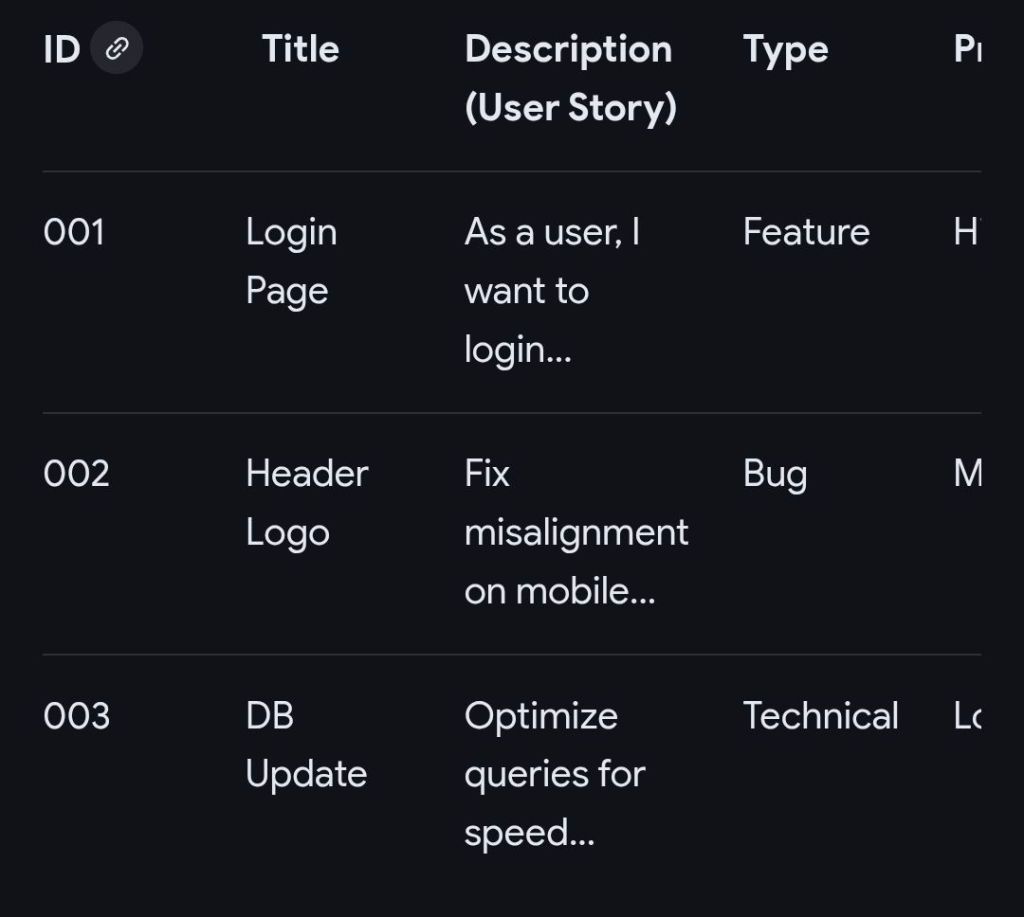
Example Structure for MS Excel Project Backlog
This structure can be implemented in a simple Microsoft Excel sheet, enabling filtering and sorting by priority or assignee.
Example Structure for MS Excel Project Backlog
Detailed Overview of Functional Features
Drop-down Menus (Data Validation): Use these for “Status,” “Priority,” and “Type” columns to maintain data consistency.
Conditional Formatting: Automatically color-code rows based on status (e.g., “Done” turns green) or priority (e.g., “High” turns red) to visually identify bottlenecks.
Formulas: Implement formulas to calculate total story points or project completion percentage.
Filtering: Use filtering on column headers to immediately view specific categories or an assignee’s workload.
Related Agile Templates in MS Excel
Sprint Backlog: Contains only items selected from the main Product Backlog for the current 2-4 week sprint.
Kanban Board View: Organizes the backlog into vertical columns representing stages of workflow (Backlog, In Progress, Done).
Burndown Chart: Uses data from the backlog to plot remaining work hours over the course of a sprint.
……….
Project Work in Progress or WIP
A Work in Progress (WIP) template in Microsoft Excel serves two primary purposes depending on your industry: operational task tracking for project management or financial reporting for construction and contracting.
1. Essential Columns for Operational WIP (Project Management)
This format focuses on day-to-day task execution and risk management.
Task / Activity: Clear description of the work being done (e.g., “Design Phase Sign-off”).
Owner / Assigned To: Name of the person or team responsible for the task.
Due Date: The critical deadline for task completion.
Status: Current state of the task, typically using a dropdown menu for “Not Started,” “In Progress,” “Blocked,” or “Complete”.
% Complete: A numerical value (0–100%) providing granular visibility into progress.
Priority: Categorisation of importance (High, Medium, Low) to help teams focus on critical items.
Notes / Blockers: Documentation of risks, dependencies, or reasons for delay.
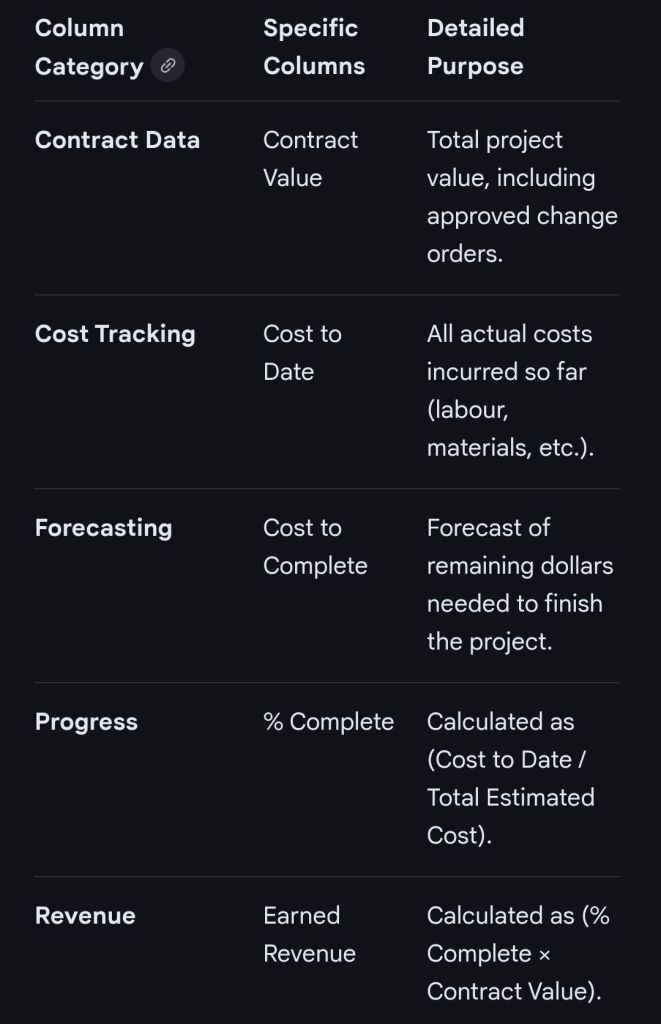
2. Essential Columns for Financial WIP (Construction/Contracting)
This format bridges financial data with project completion to calculate earned revenue and billing accuracy.
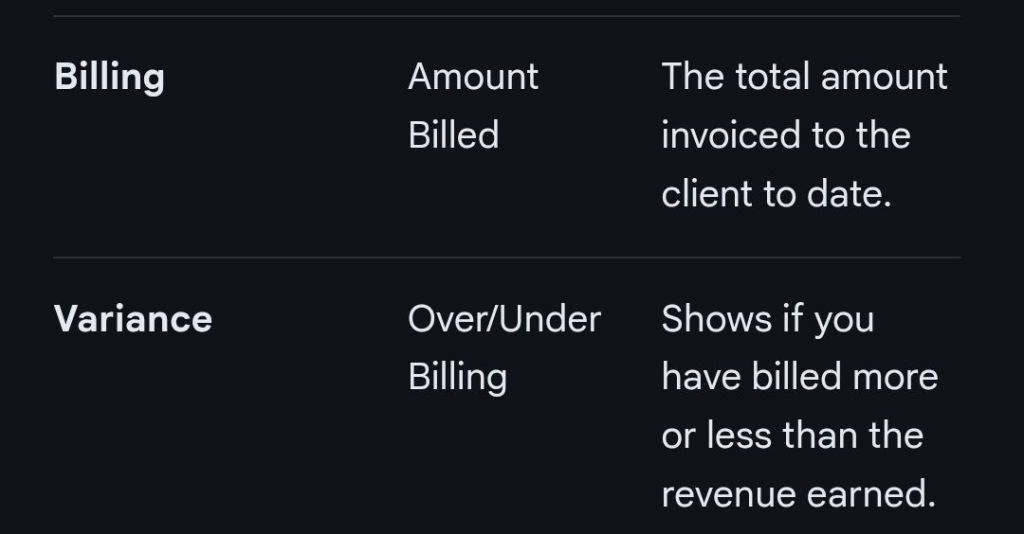
Essential MS Excel Columns for Financial WIP (Construction/Contracting)
Advanced Template Features
Status Dashboard: A summary section at the top of the sheet displaying overall project health, risks, and budget status.
Data Validation: Using dropdown lists for the “Status” and “Budget” columns to ensure consistent data entry.
Conditional Formatting: Using color-coded indicators (Red, Yellow, Green) for at-risk tasks or budget overruns.
Freeze Panes: Locking the header rows so they remain visible while scrolling through long task lists.
Microsoft Excel Project Backlog template & Work in Progress WIP
……….
Summary of ‘Project Backlog’ columns in Excel
ID / Task Number
Item Name / Title
User Story / Description
Type
Priority
Status
Assignee / Owner
Story Points / Effort Estimate
Acceptance Criteria
Target Sprint / Release
……….
Summary of (Project Management) ‘Operational’ Work in Progress (WIP) columns in Excel
Task Activity
Owner / Assigned To
Due Date
Status
% Complete
Priority
Notes / Blockers
……….
Summary of (Construction / Contracting) ‘Financial’ Work in Progress (WIP) columns in Excel
Contract Data
Cost Tracking
Forecasting
Progress
Revenue
Billing
Variance
……….
End> Microsoft Excel Project Backlog template & Work in Progress WIP