

A Microsoft Excel project backlog template is a prioritized, centralized list of all pending work—features, user stories, bug fixes, and tasks—that need to be completed, often used in Agile, Scrum, or Kanban frameworks to manage team workload and project scope.
Key Columns for an Effective Backlog Template
To create a detailed backlog, the following columns are essential for tracking, prioritizing, and assigning work items:
- ID/Task Number: A unique identifier for each item (e.g., P-001, P-002) for easy referencing.
- Item Name/Title: A concise title describing the task or requirement.
- User Story/Description: A detailed description of the work, often in the format: “As a [type of user], I want to [action], so that [value]”.
- Type: Categorizes the work (e.g., Feature, Bug, Improvement, Technical Debt).
- Priority: Defines the order of execution, typically Rank (1, 2, 3), High/Medium/Low, or MoSCoW (Must-have, Should-have, Could-have, Won’t-have).
- Status: Indicates the current stage of the item (e.g., Backlog, To-Do, In Progress, Testing, Done).
- Assignee/Owner: The team member responsible for completing the item.
- Story Points/Effort Estimate: An estimated size of the task (e.g., using Fibonacci sequence: 1, 2, 3, 5, 8…).
- Acceptance Criteria: Specific conditions that must be met for the item to be marked as “Done”.
- Target Sprint/Release: The planned iteration or release version in which the task is scheduled.
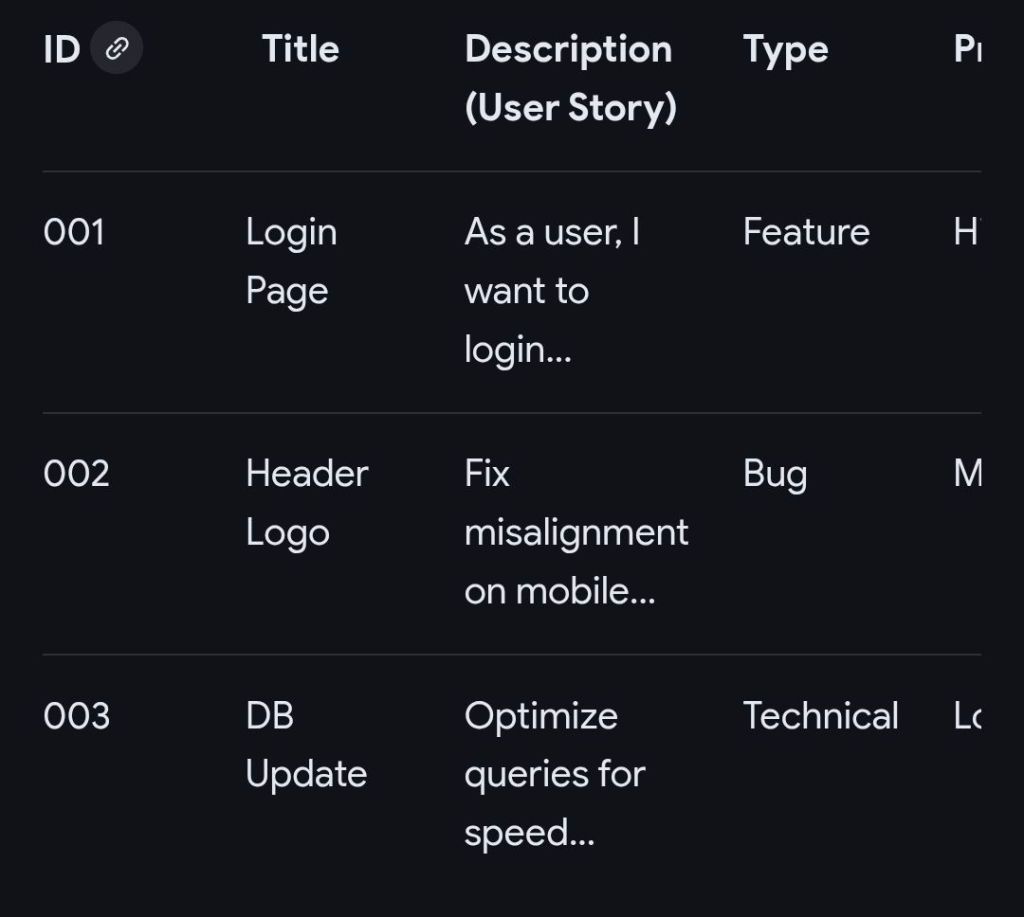
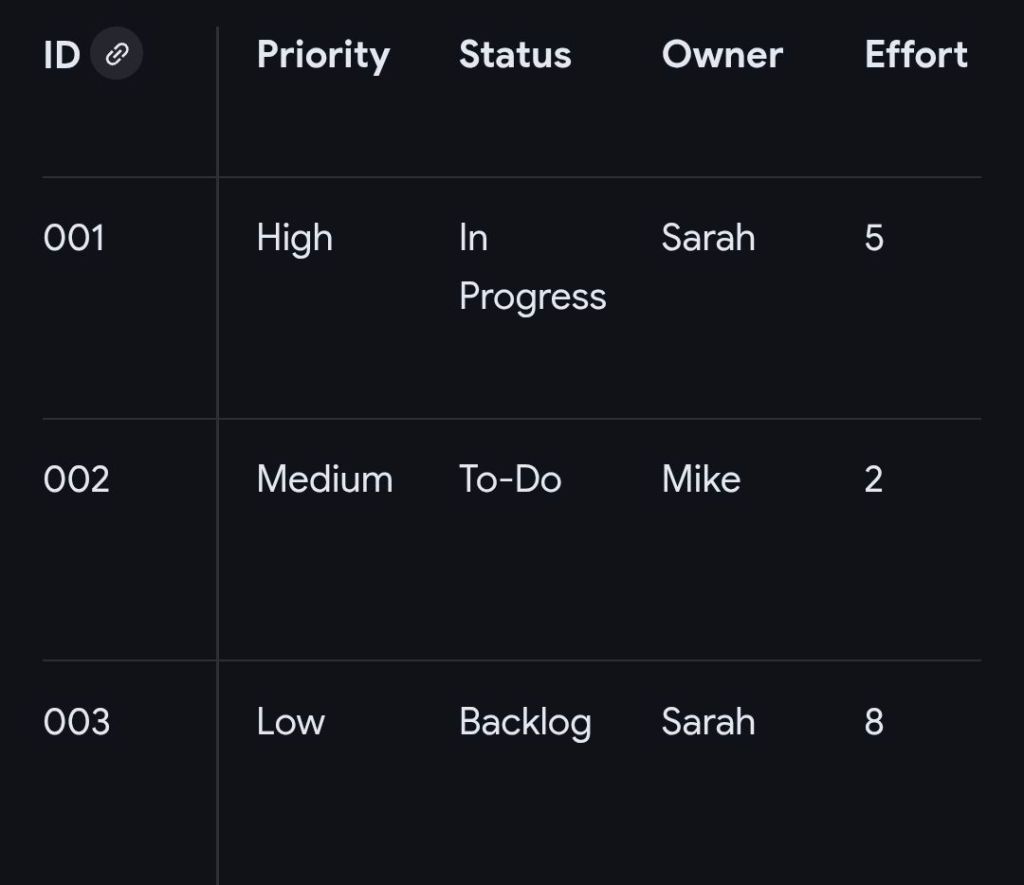
Example Structure for MS Excel Project Backlog
This structure can be implemented in a simple Microsoft Excel sheet, enabling filtering and sorting by priority or assignee.
Detailed Overview of Functional Features
- Drop-down Menus (Data Validation): Use these for “Status,” “Priority,” and “Type” columns to maintain data consistency.
- Conditional Formatting: Automatically color-code rows based on status (e.g., “Done” turns green) or priority (e.g., “High” turns red) to visually identify bottlenecks.
- Formulas: Implement formulas to calculate total story points or project completion percentage.
- Filtering: Use filtering on column headers to immediately view specific categories or an assignee’s workload.
Related Agile Templates in MS Excel
- Sprint Backlog: Contains only items selected from the main Product Backlog for the current 2-4 week sprint.
- Kanban Board View: Organizes the backlog into vertical columns representing stages of workflow (Backlog, In Progress, Done).
- Burndown Chart: Uses data from the backlog to plot remaining work hours over the course of a sprint.
……….
Project Work in Progress or WIP
A Work in Progress (WIP) template in Microsoft Excel serves two primary purposes depending on your industry: operational task tracking for project management or financial reporting for construction and contracting.
1. Essential Columns for Operational WIP (Project Management)
This format focuses on day-to-day task execution and risk management.
- Task/Activity: Clear description of the work being done (e.g., “Design Phase Sign-off”).
- Owner/Assigned To: Name of the person or team responsible for the task.
- Due Date: The critical deadline for task completion.
- Status: Current state of the task, typically using a dropdown menu for “Not Started,” “In Progress,” “Blocked,” or “Complete”.
- % Complete: A numerical value (0–100%) providing granular visibility into progress.
- Priority: Categorisation of importance (High, Medium, Low) to help teams focus on critical items.
- Notes/Blockers: Documentation of risks, dependencies, or reasons for delay.
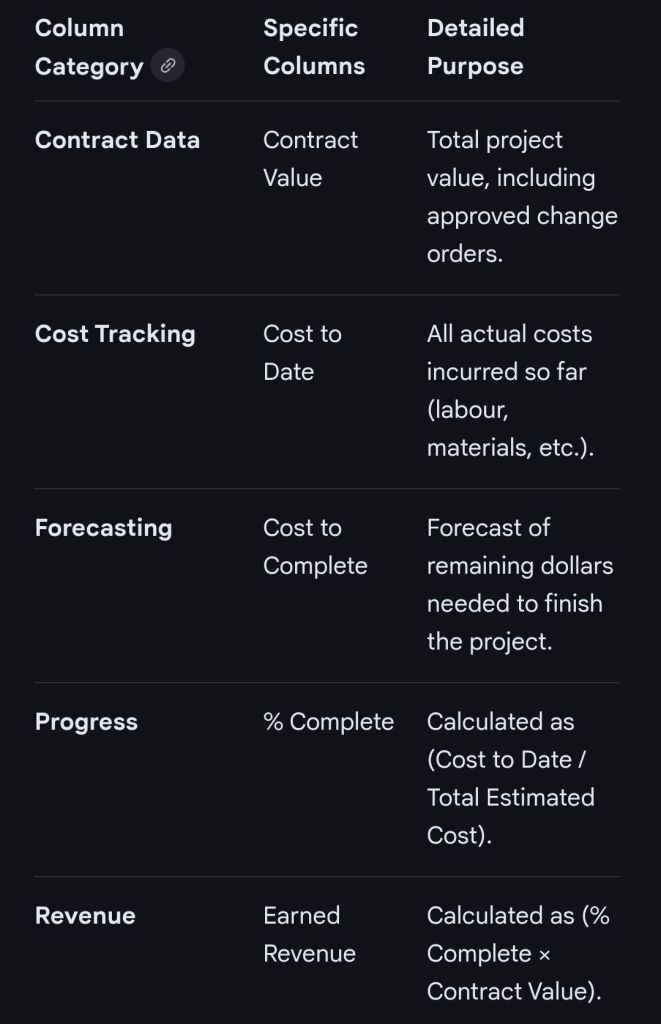
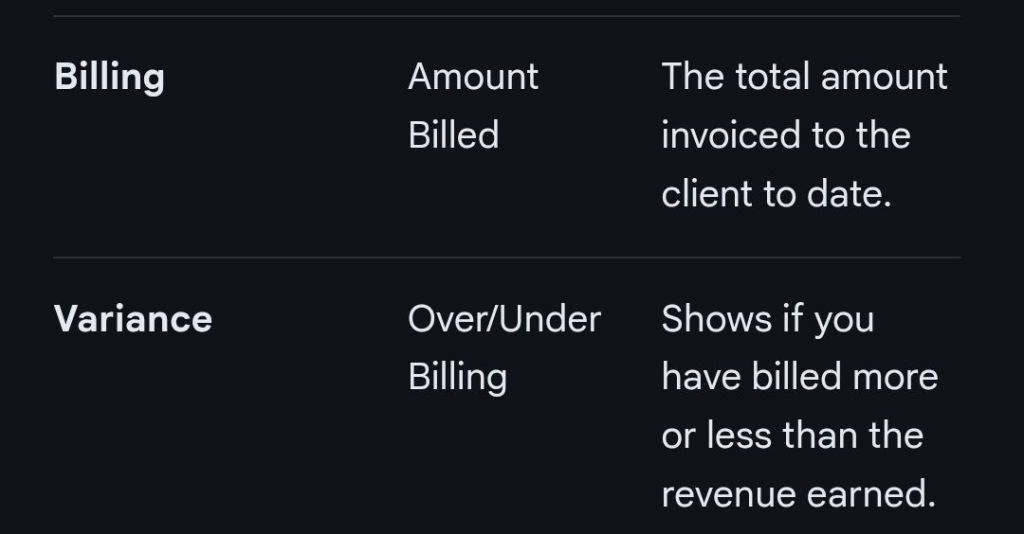
2. Essential Columns for Financial WIP (Construction/Contracting)
This format bridges financial data with project completion to calculate earned revenue and billing accuracy.
Advanced Template Features
- Status Dashboard: A summary section at the top of the sheet displaying overall project health, risks, and budget status.
- Data Validation: Using dropdown lists for the “Status” and “Budget” columns to ensure consistent data entry.
- Conditional Formatting: Using color-coded indicators (Red, Yellow, Green) for at-risk tasks or budget overruns.
- Freeze Panes: Locking the header rows so they remain visible while scrolling through long task lists.
Microsoft Excel Project Backlog template & Work in Progress WIP
……….
Summary of ‘Project Backlog’ columns in Excel
- ID / Task Number
- Item Name / Title
- User Story / Description
- Type
- Priority
- Status
- Assignee / Owner
- Story Points / Effort Estimate
- Acceptance Criteria
- Target Sprint / Release
……….
Summary of (Project Management) ‘Operational’ Work in Progress (WIP) columns in Excel
- Task Activity
- Owner / Assigned To
- Due Date
- Status
- % Complete
- Priority
- Notes / Blockers
……….
Summary of (Construction / Contracting) ‘Financial’ Work in Progress (WIP) columns in Excel
- Contract Data
- Cost Tracking
- Forecasting
- Progress
- Revenue
- Billing
- Variance
……….
End> Microsoft Excel Project Backlog template & Work in Progress WIP

 PROject Templates